Menu in the chatbot
Create a menu in the chatbot with salesbot: add up to 3 buttons or build a numbered menu with conditions to route each item through its own message chain.
The gray integration with WhatsApp supports a maximum of 3 buttons.
Menus with more items need to be configured by numbers.
Video tutorial on how to create buttons in a chatbot 👇
https://disk.yandex.ru/i/ZgtZyfrPhHbZnA
Instructions for creating a chat bot with buttons
- Go to the funnel settings.
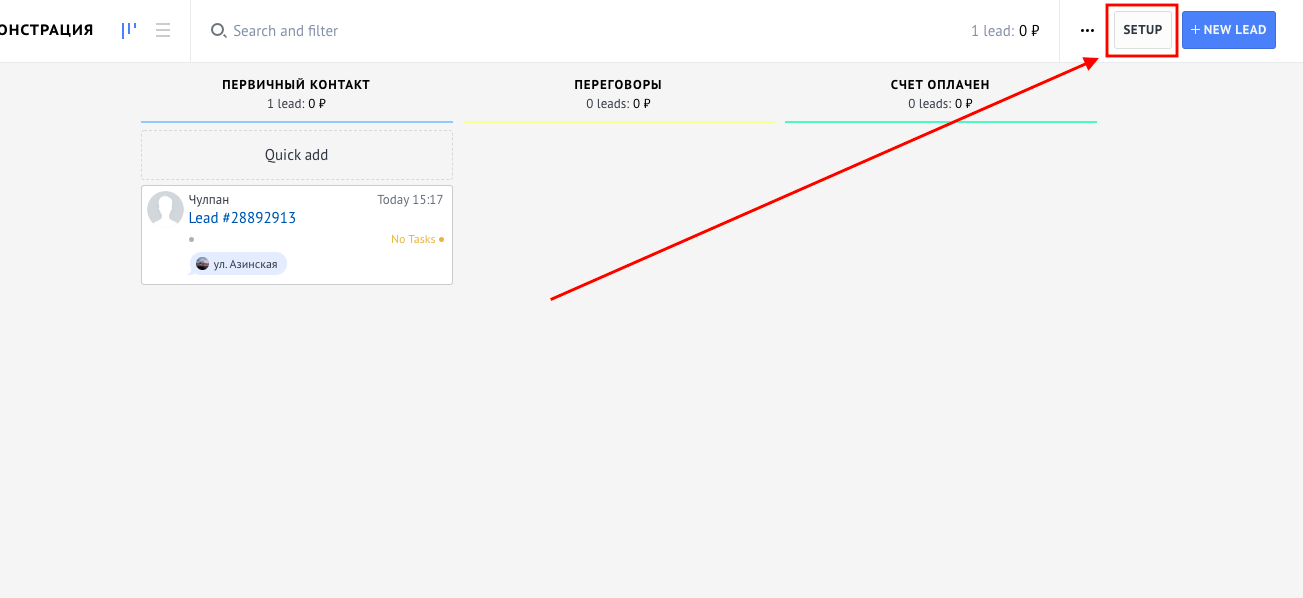
- Under the status where you want to create a bot, click on the empty cell. The screenshot shows an example with the “Primary Contact” status.
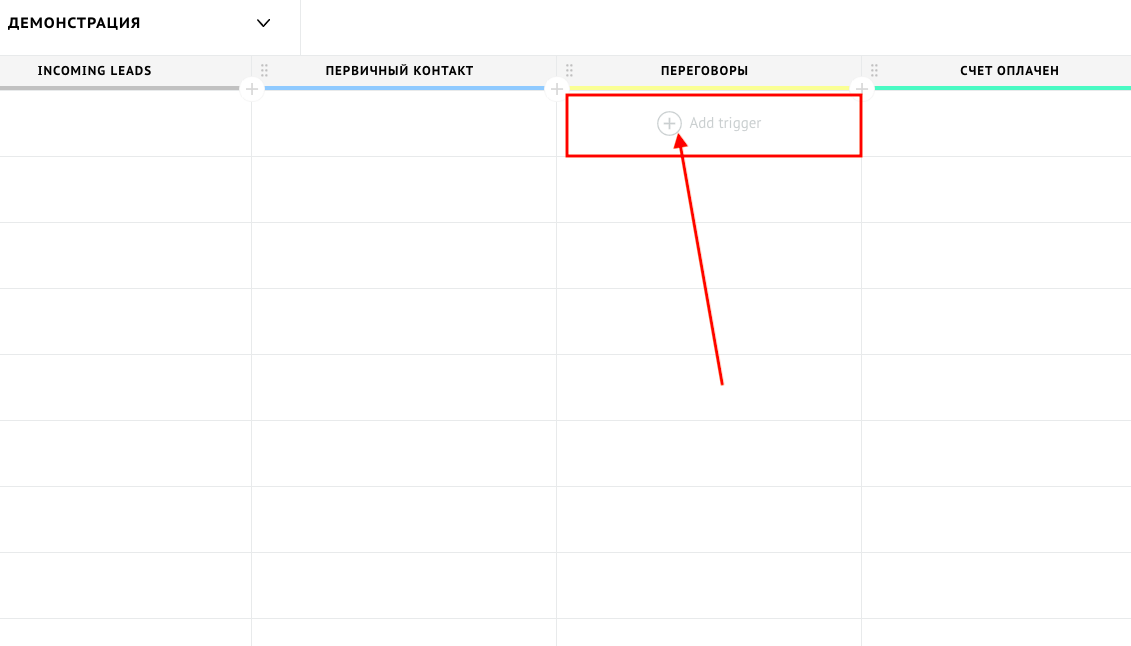
- In the window that appears, select salesbot.
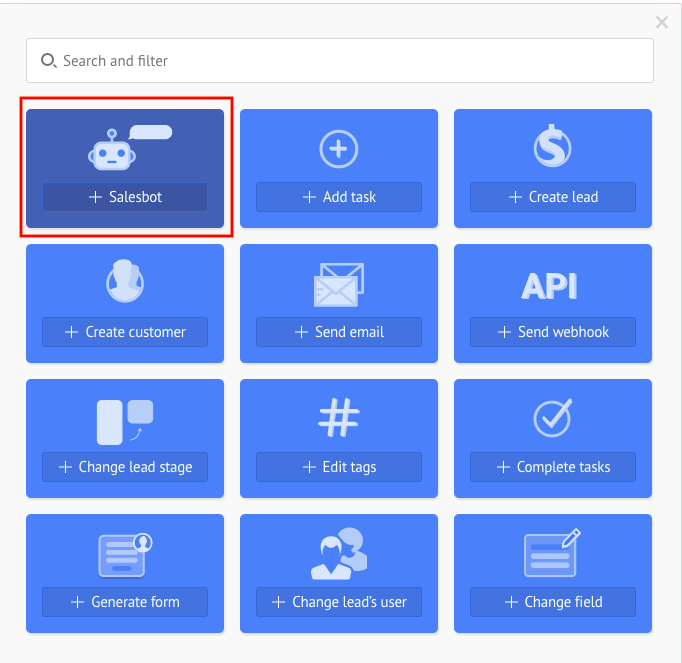
- Click “Create New Bot”.
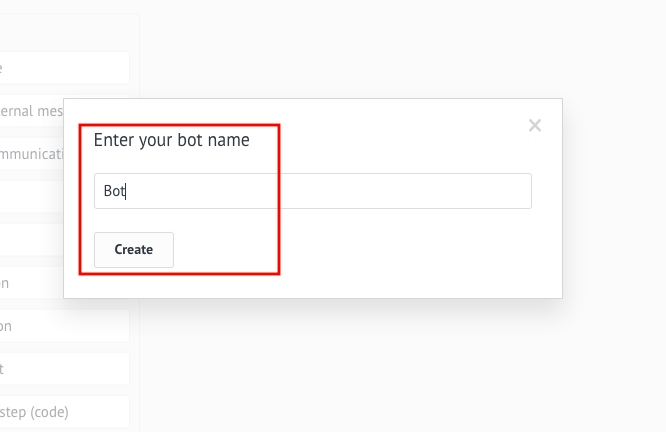
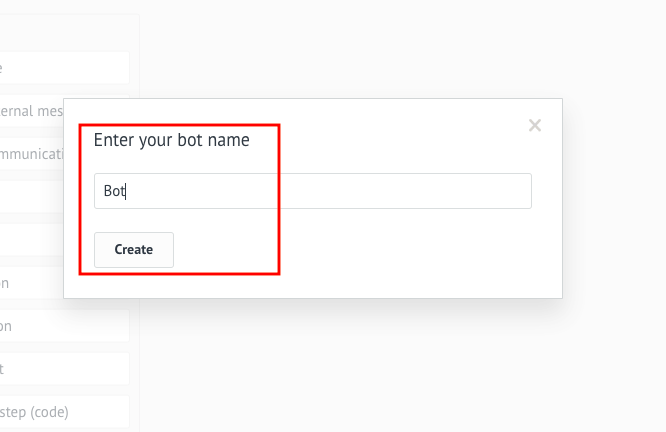
- Give the bot a name and click “Create”.
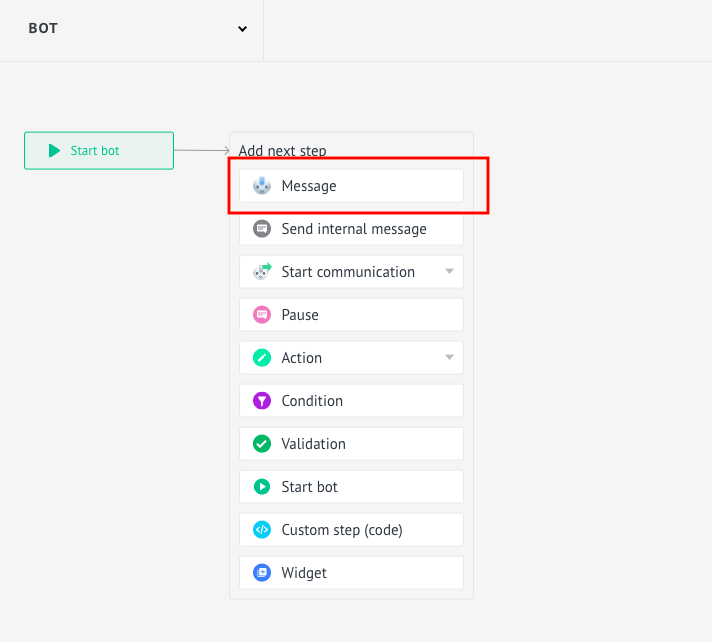
- Select the first item “Send Message”.
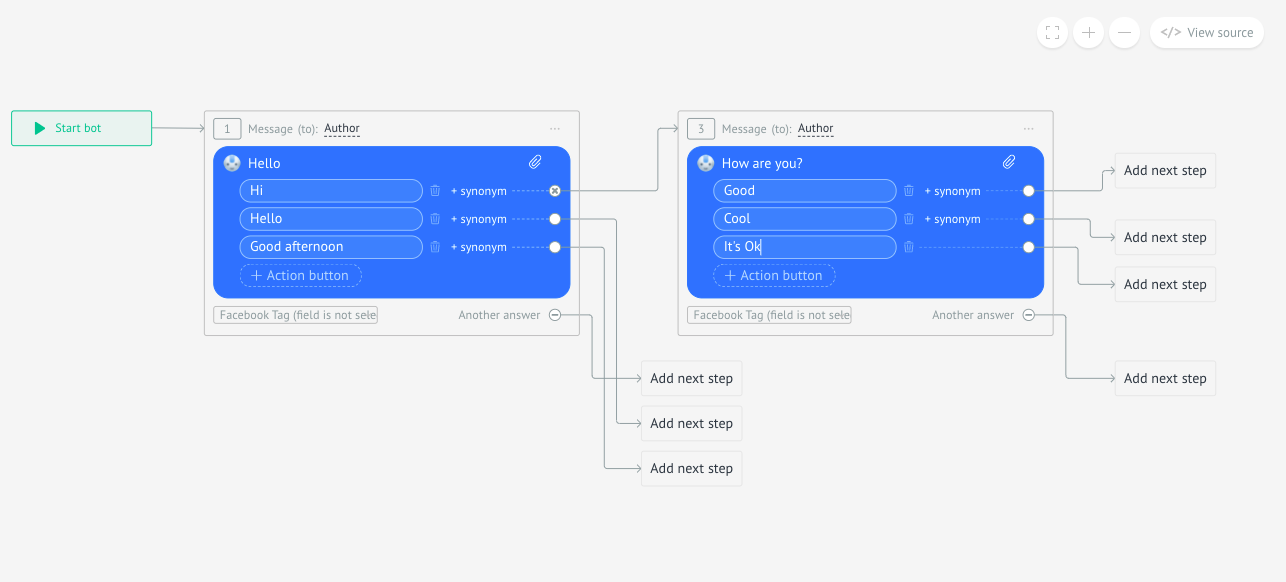
- Вписать сообщение + кнопки (максимум 3 штуки).
If you are setting up a bot with numbers, follow the instructions below here.
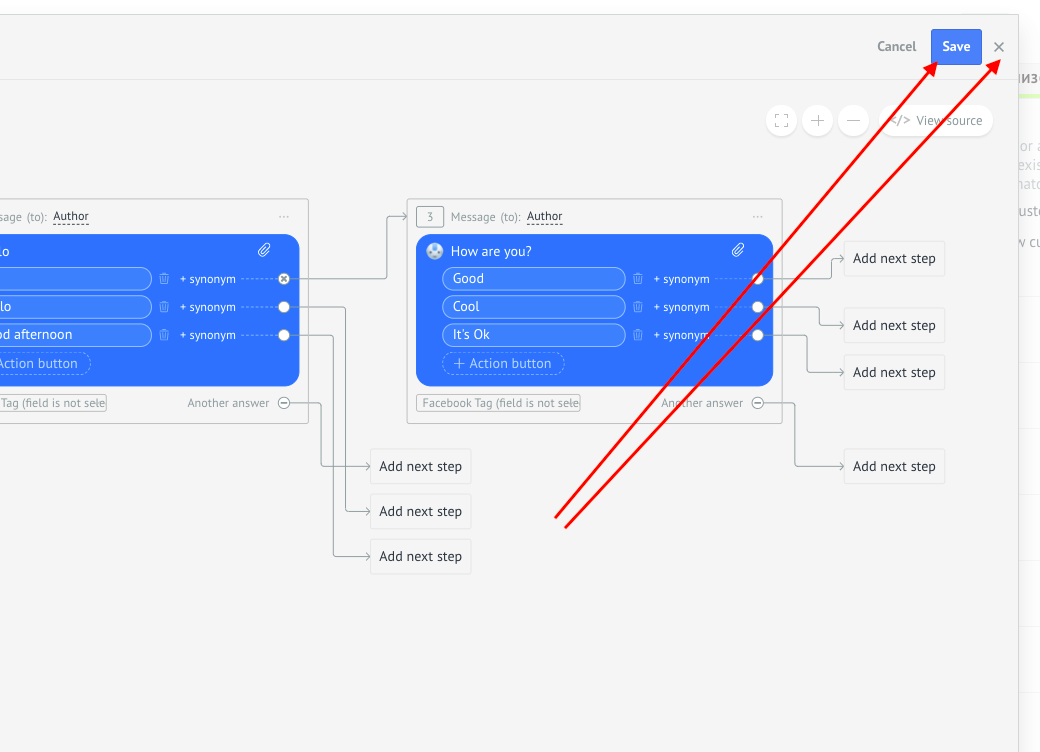
- “Save” bot - “Close” bot.
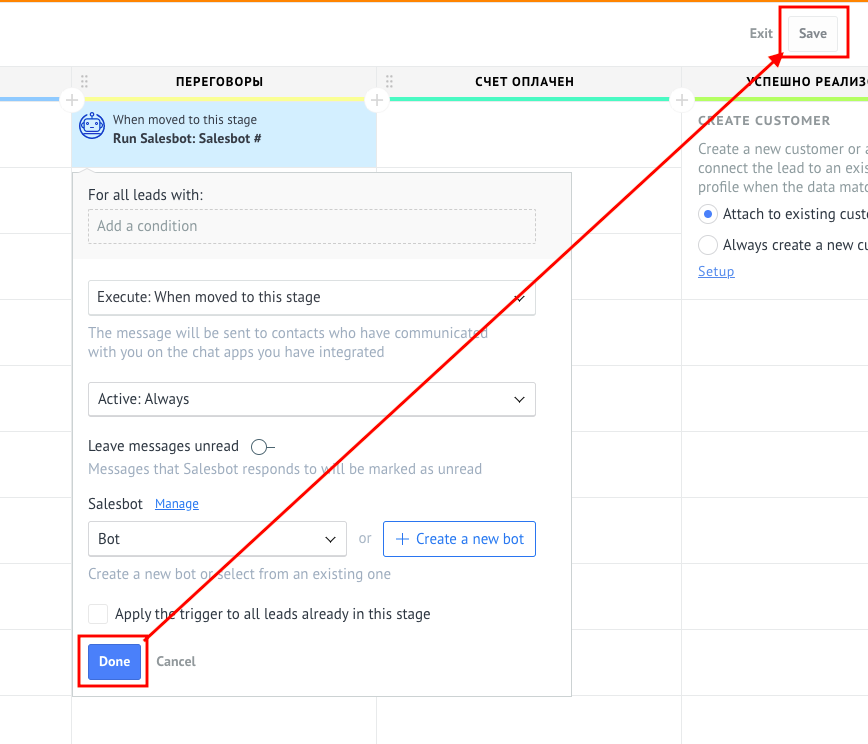
- Click “Done” - “Save” funnel.
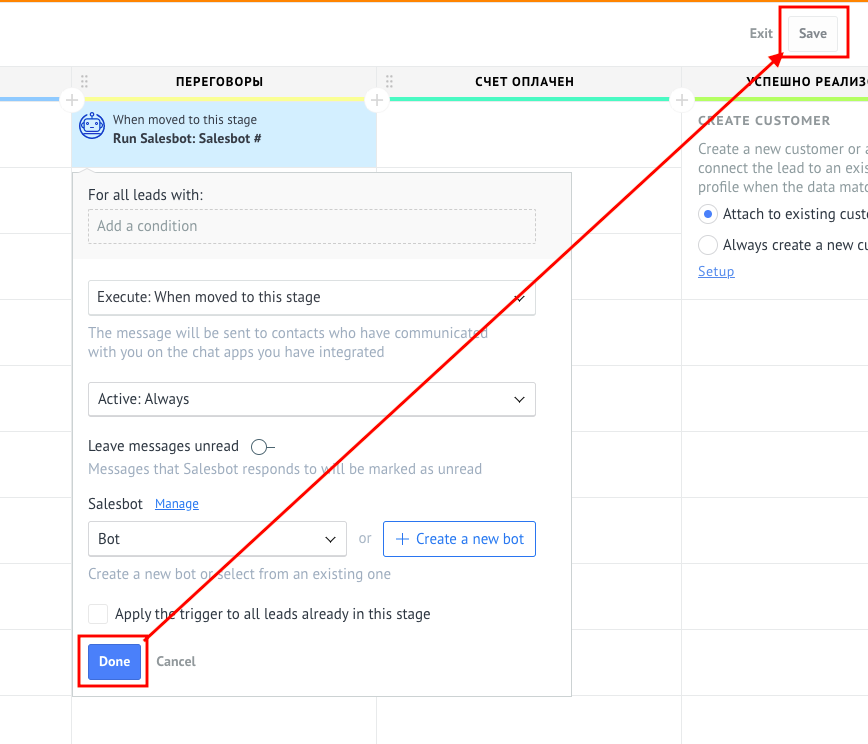
- Test the bot.
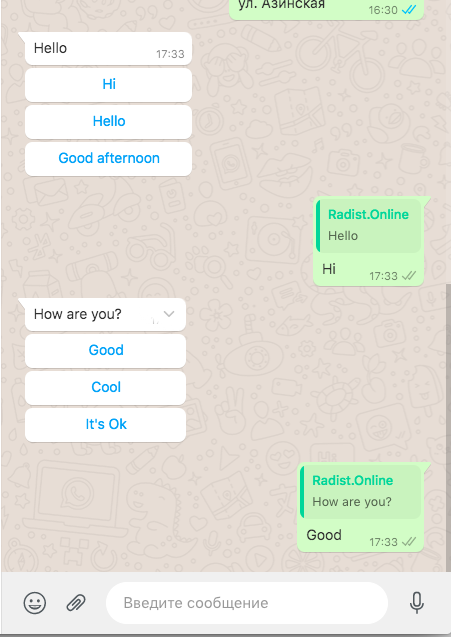
Instructions for creating a chat bot with numbers
Do the same for creating a bot according to the instructions above to point 7.
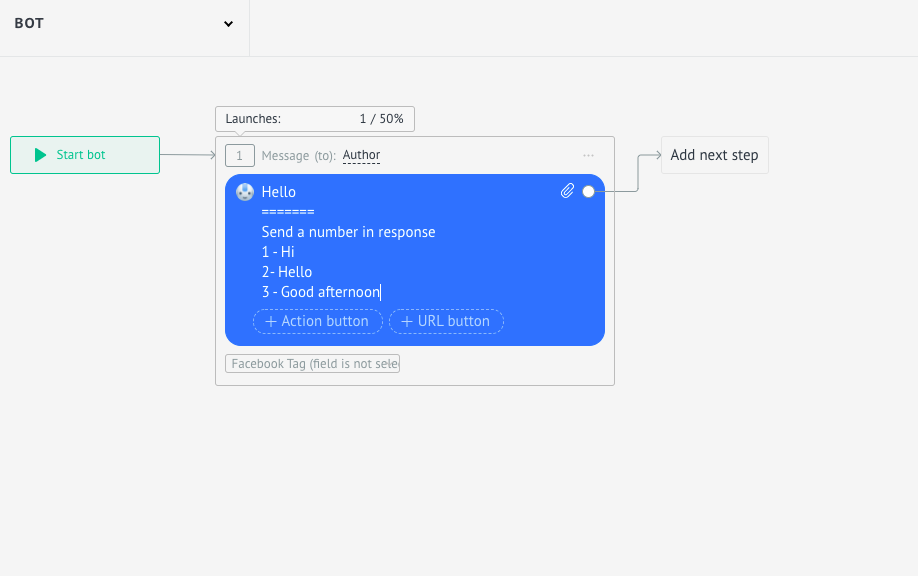
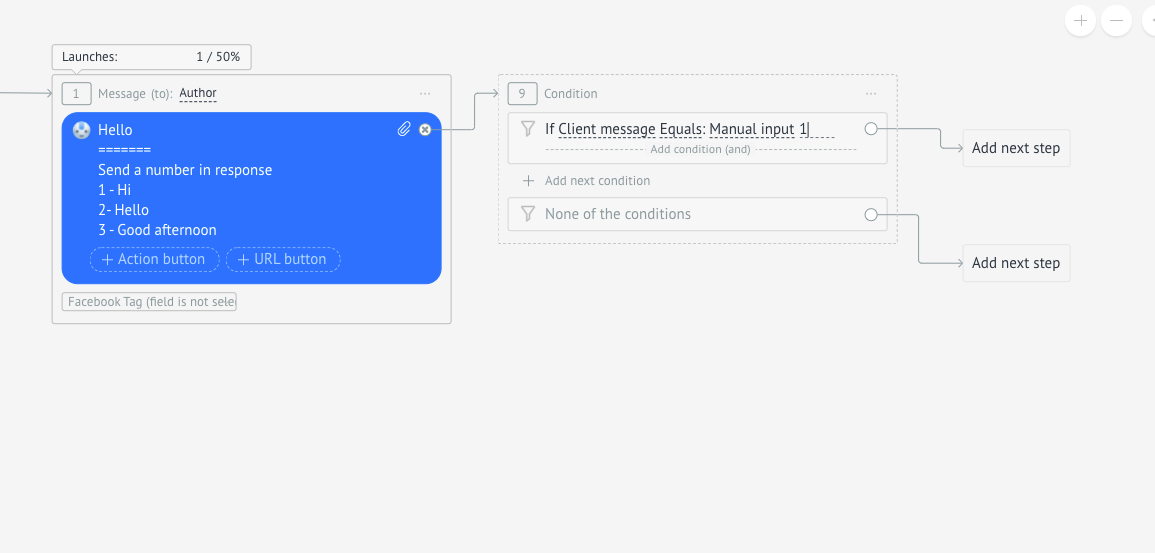
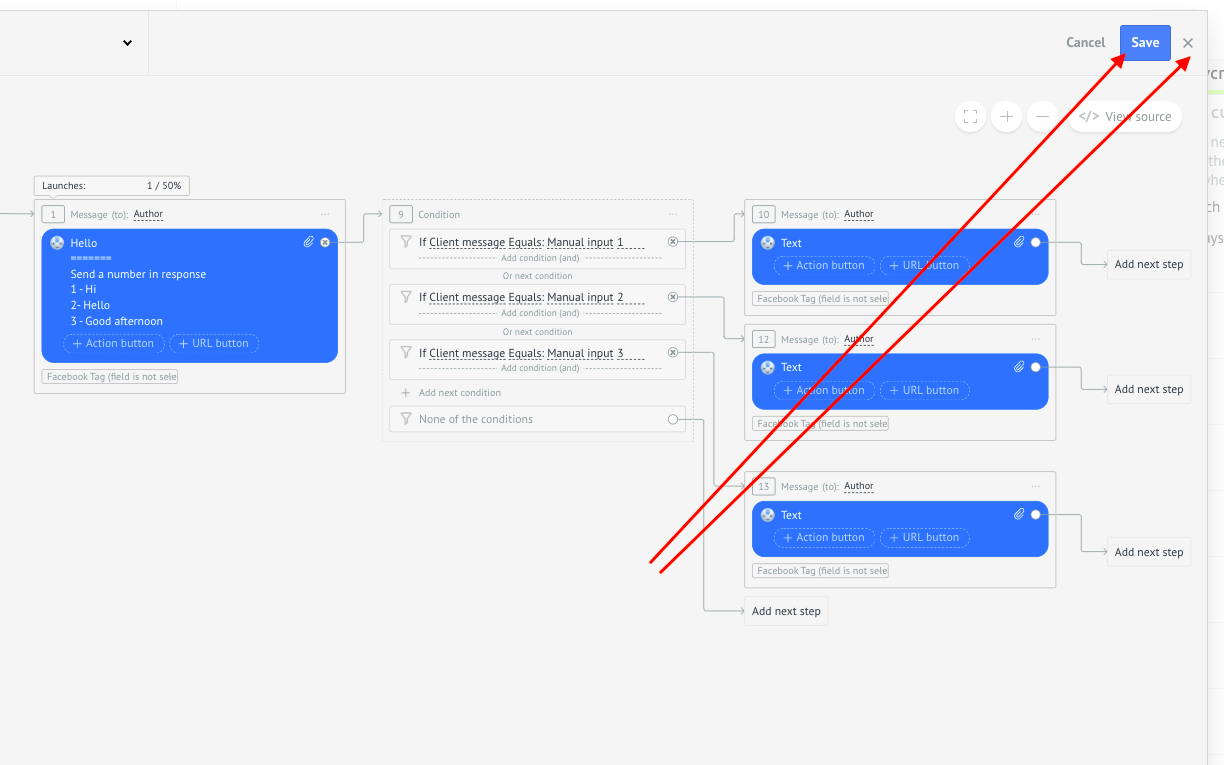
- Write the message in the bot + numbers.
In fact, the number of menu items can be unlimited, but it is better to do no more than 10, otherwise the client can just be uncomfortable.
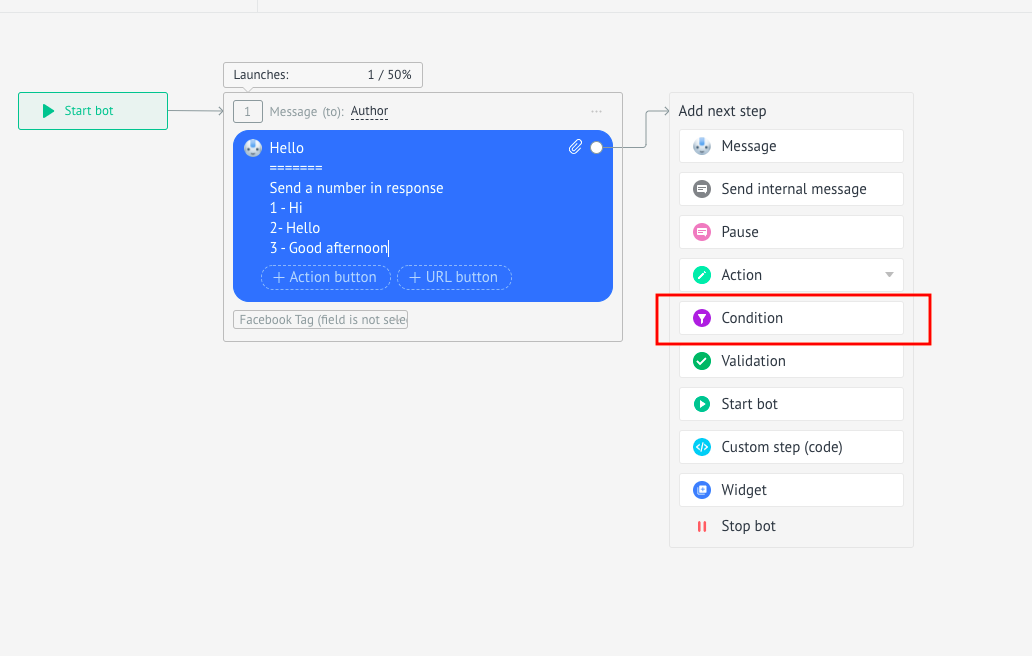
- To further build the bot chain for each of the menu items, the next step is to select “Condition”.
- In the condition to prescribe each menu item.
If Client Message Equals Own Value …
Instead of … substitute menu item numbers (not item names, because the client will enter exactly the numbers. Although some customers may break the bot by sending text).
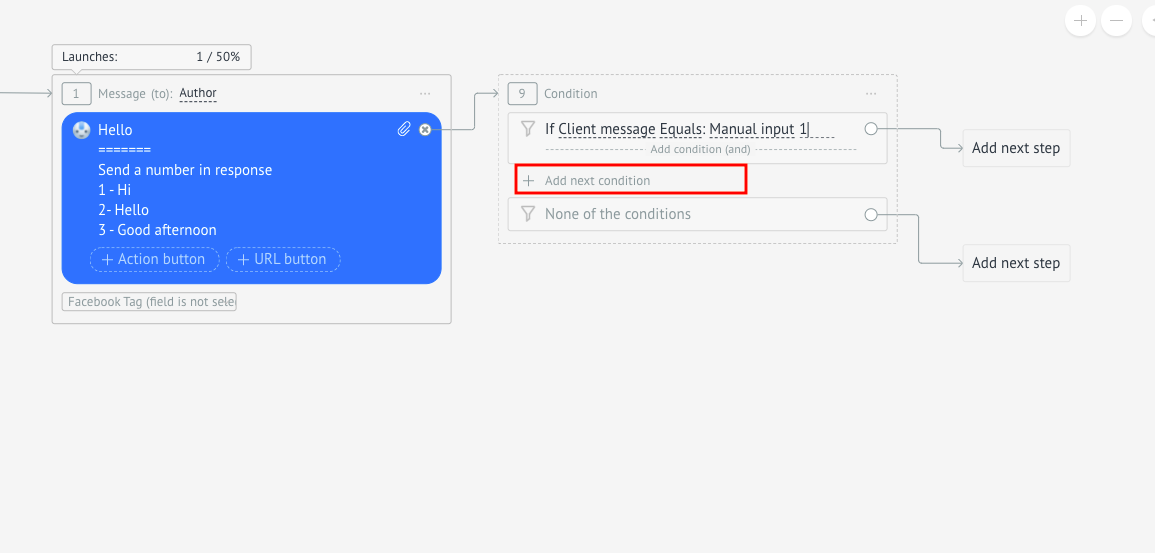
- To set up the rest of the menu items in the same condition, click “Add next condition”.
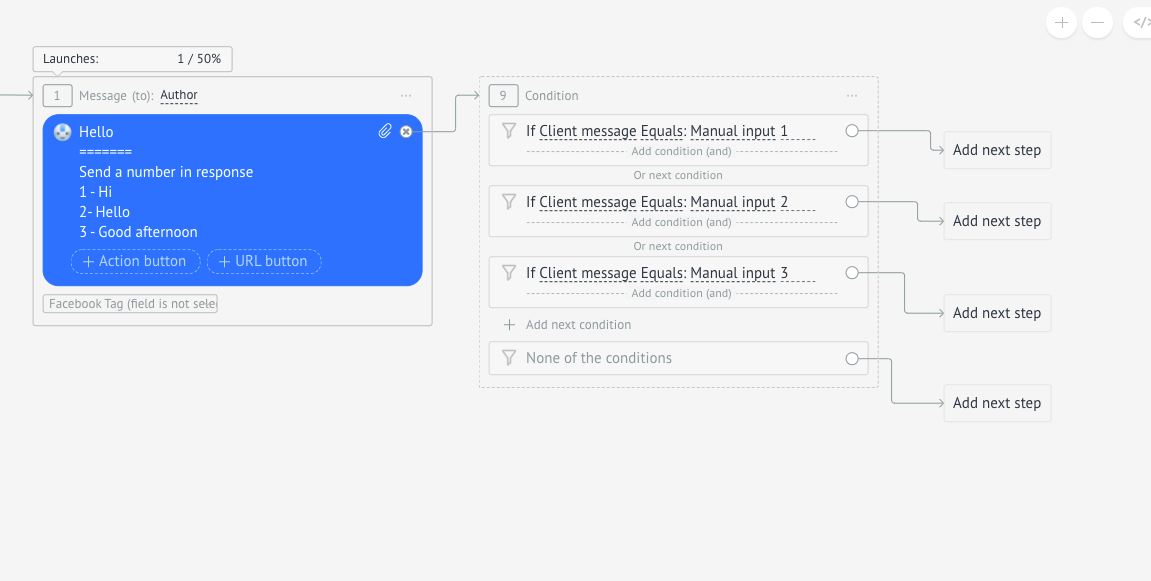
- Then for each menu item you set up your own chain of messages and automatic actions that you need.
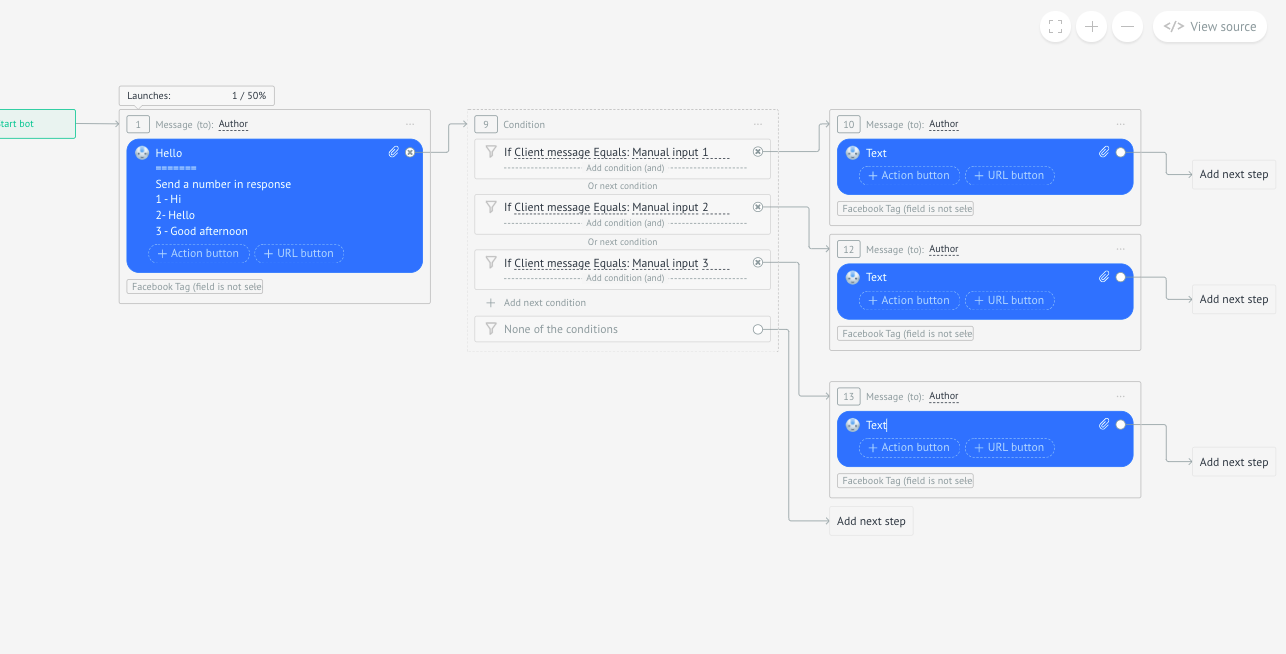
- “Save” bot - “Close” bot.
- Click “Done” - “Save” funnel.
- Done. :rabbit: