WABA in Coexistence (CoEx) mode
WABA in Coexistence (CoEx) mode: connect your number to the WhatsApp Business API and keep using the WhatsApp Business app on your phone. Step-by-step setup, limitations, pricing and rules.
Normally, when a number is connected to the WhatsApp Business API, it leaves your phone: the WhatsApp Business app stops working on it. Coexistence (CoEx) is a mode where the number works in both places at once: your managers keep chatting from the phone, while you get the API — template broadcasts, chats in RadistWeb and integration with Kommo.com (amoCRM) and Bitrix24.
Who Coexistence is for
- You already work in the WhatsApp Business app and do not want to lose the number, the chat history or your customers.
- You need template broadcasts and chats in your CRM, but part of the team will keep writing from the phone.
- You are ready to keep the app on the phone and open it at least once every 13 days.
What to prepare in advance
- The latest version of the WhatsApp Business app on a smartphone with a camera — you will need to scan a QR code during setup.
- The number is already registered in the WhatsApp Business app. The mode only works in this direction: from the app to the platform. A number that is already connected to the WhatsApp Business API cannot be switched to CoEx.
- A Facebook account — you confirm the connection with it.
- A Meta business portfolio with the business info section filled in: legal name, address, website and the business phone number.
How to connect a number in CoEx mode
Say that the number is already used in the app
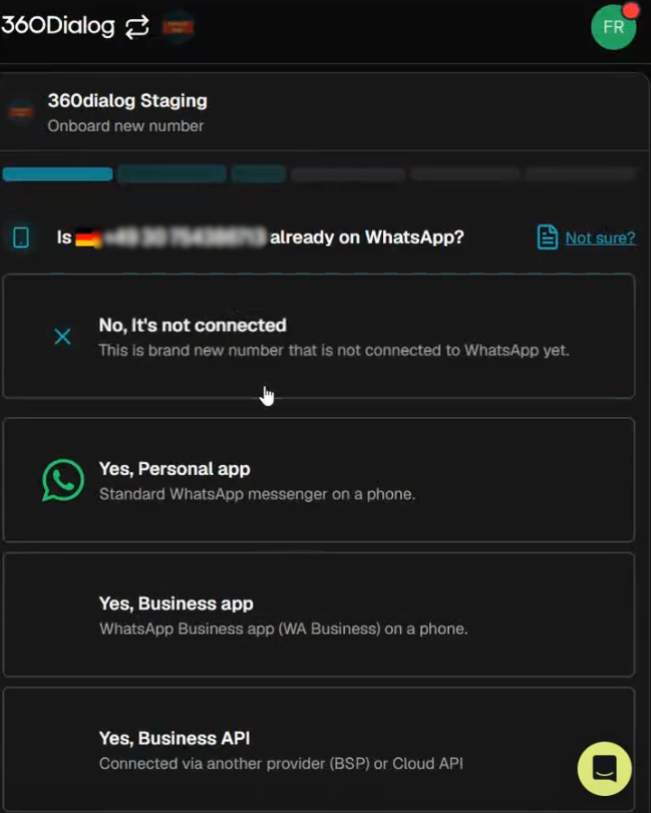
When asked about the number (Is this number already on WhatsApp?), choose Yes, Business app — the number is used in the WhatsApp Business app on a phone.
Choose to sign in with Facebook
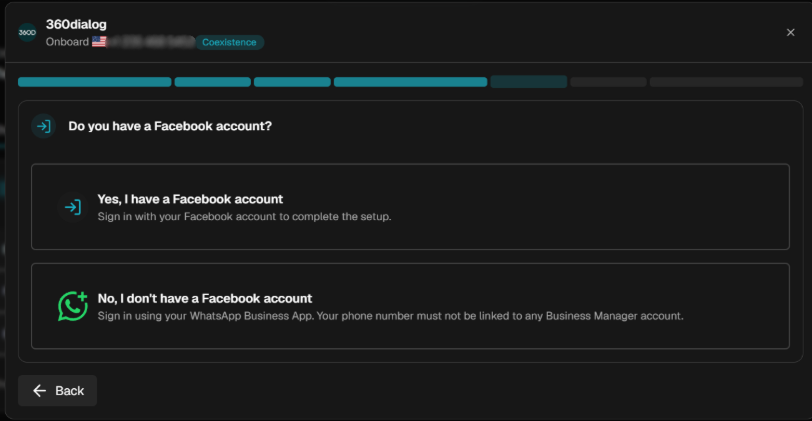
When asked Do you have a Facebook account?, choose Yes, I have a Facebook account.
Open the Meta window
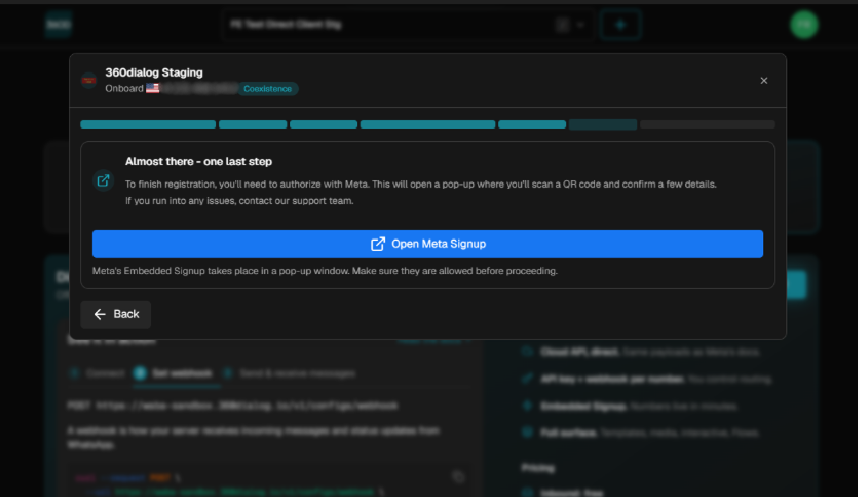
Click Open Meta Signup — the signup opens in a pop-up window.
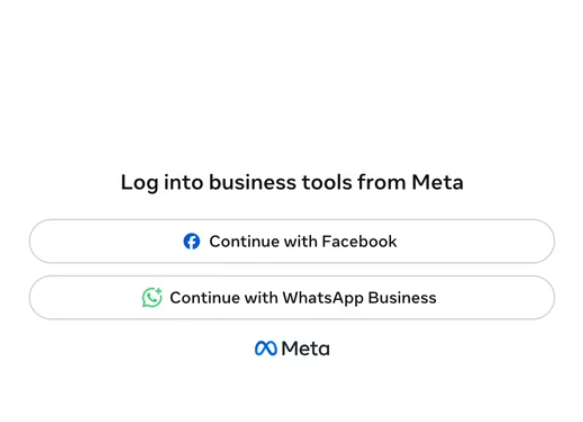
Next, click Continue with Facebook and sign in with the account you are connecting the number under.
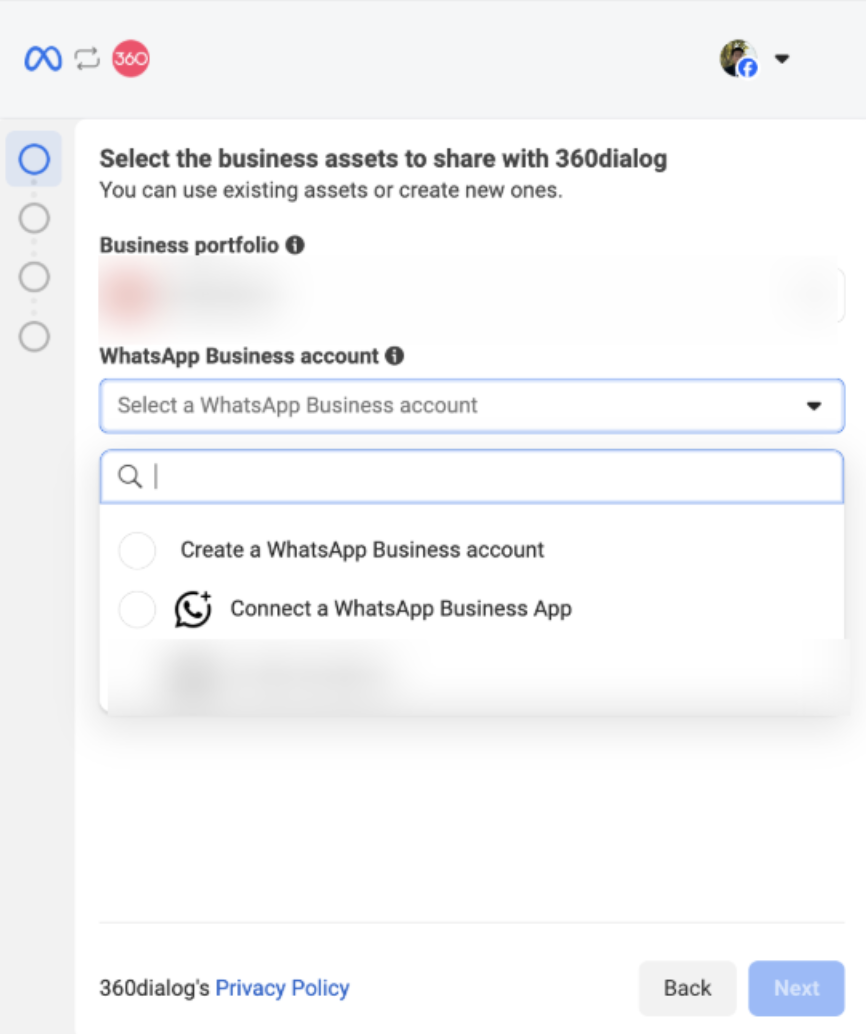
Choose «Connect a WhatsApp Business App»
In the Select the business assets to share with 360dialog window pick your business portfolio, and in the WhatsApp Business account list choose Connect a WhatsApp Business App.
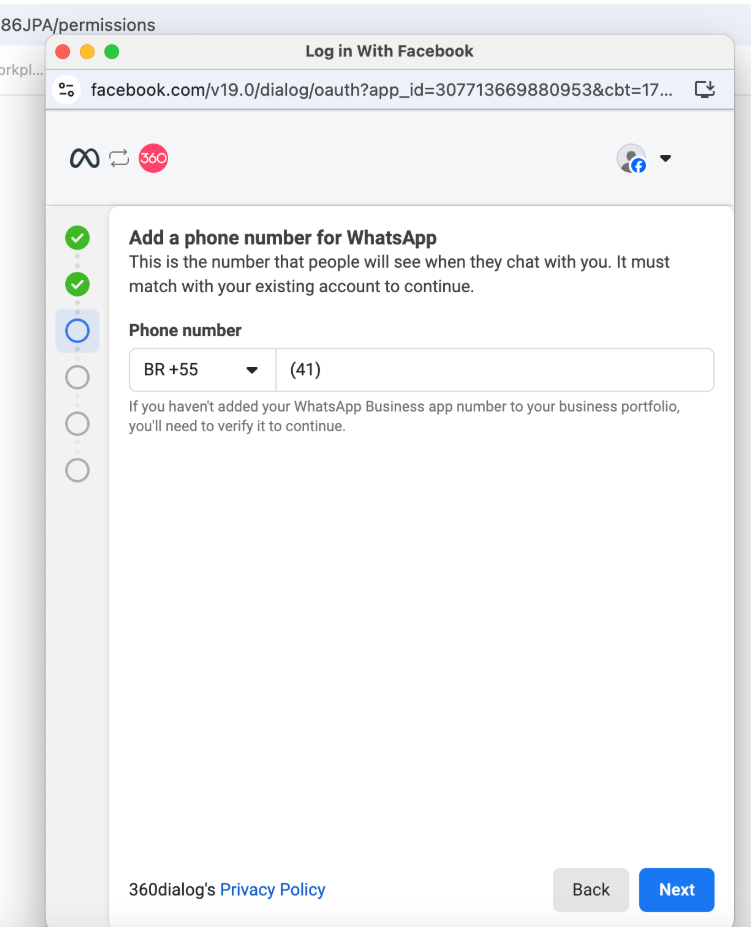
Enter the phone number
Enter the same number that works in the WhatsApp Business app and click Next.
Scan the QR code
A QR code and an access code appear on the computer screen.
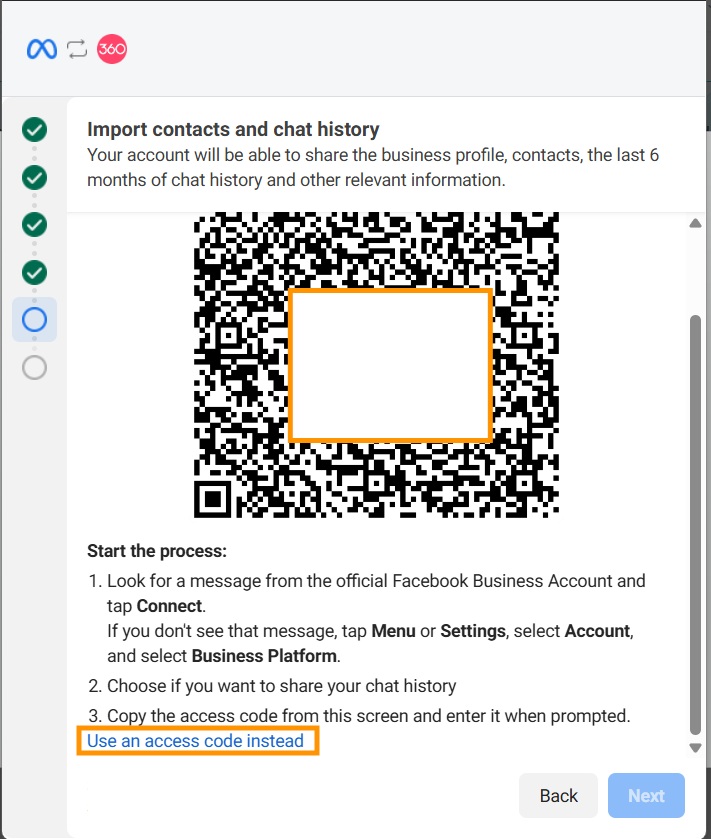
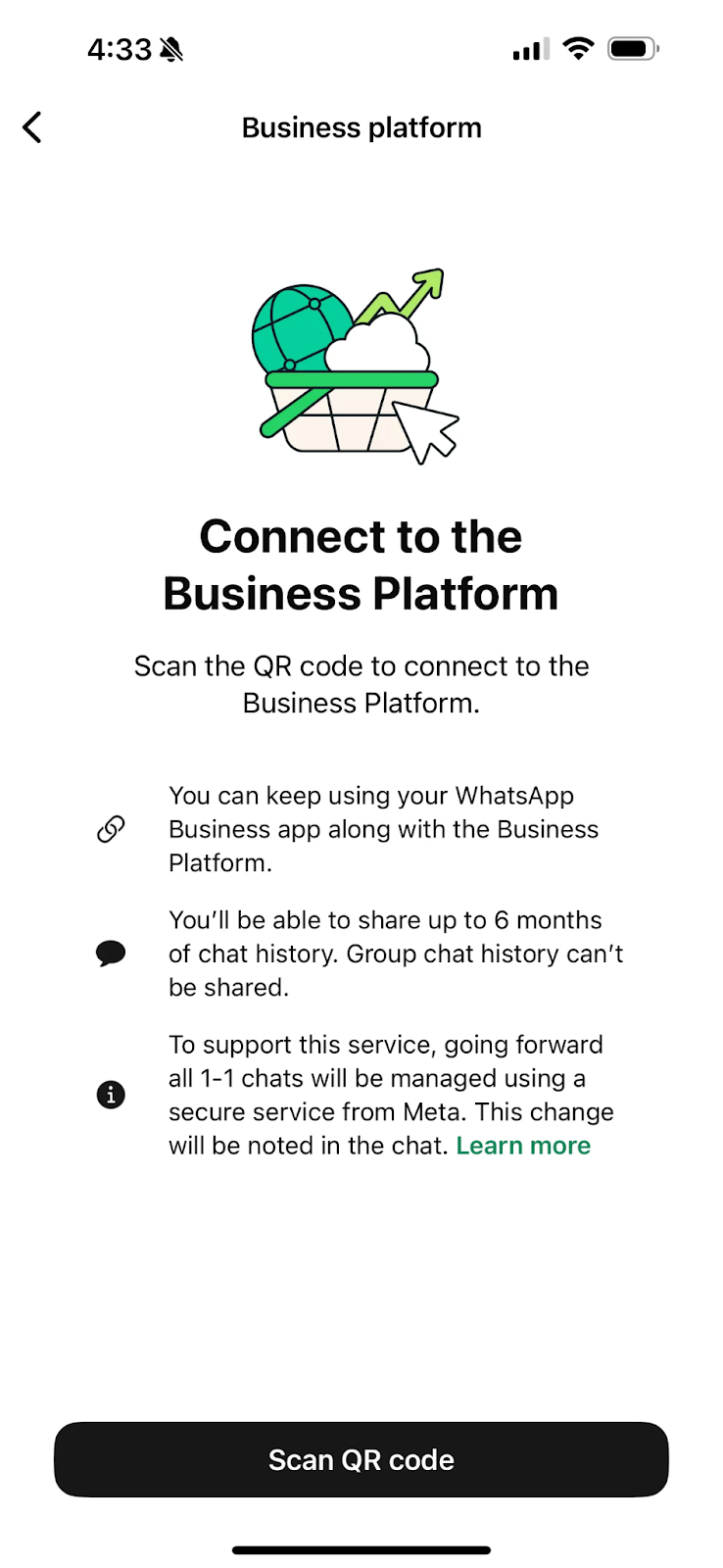
Take your phone: a message from Facebook Business — «Connect to Business Platform» — arrives in WhatsApp Business. Tap Scan QR code in it and scan the code from the screen (or enter the access code manually).
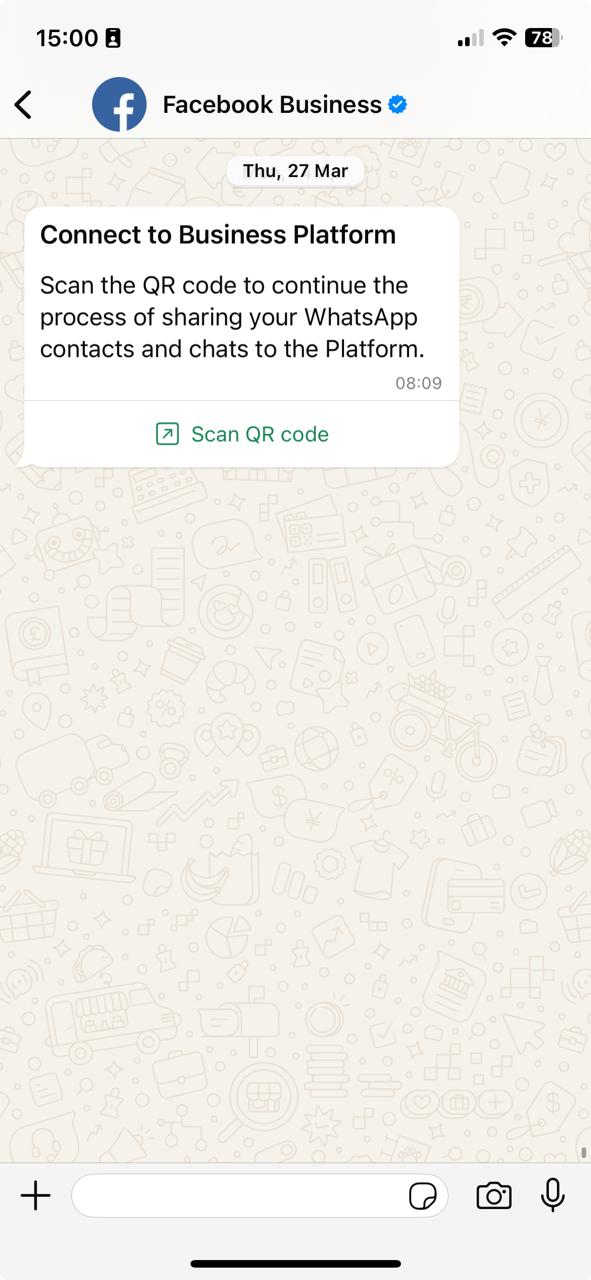
Decide whether to share the chat history
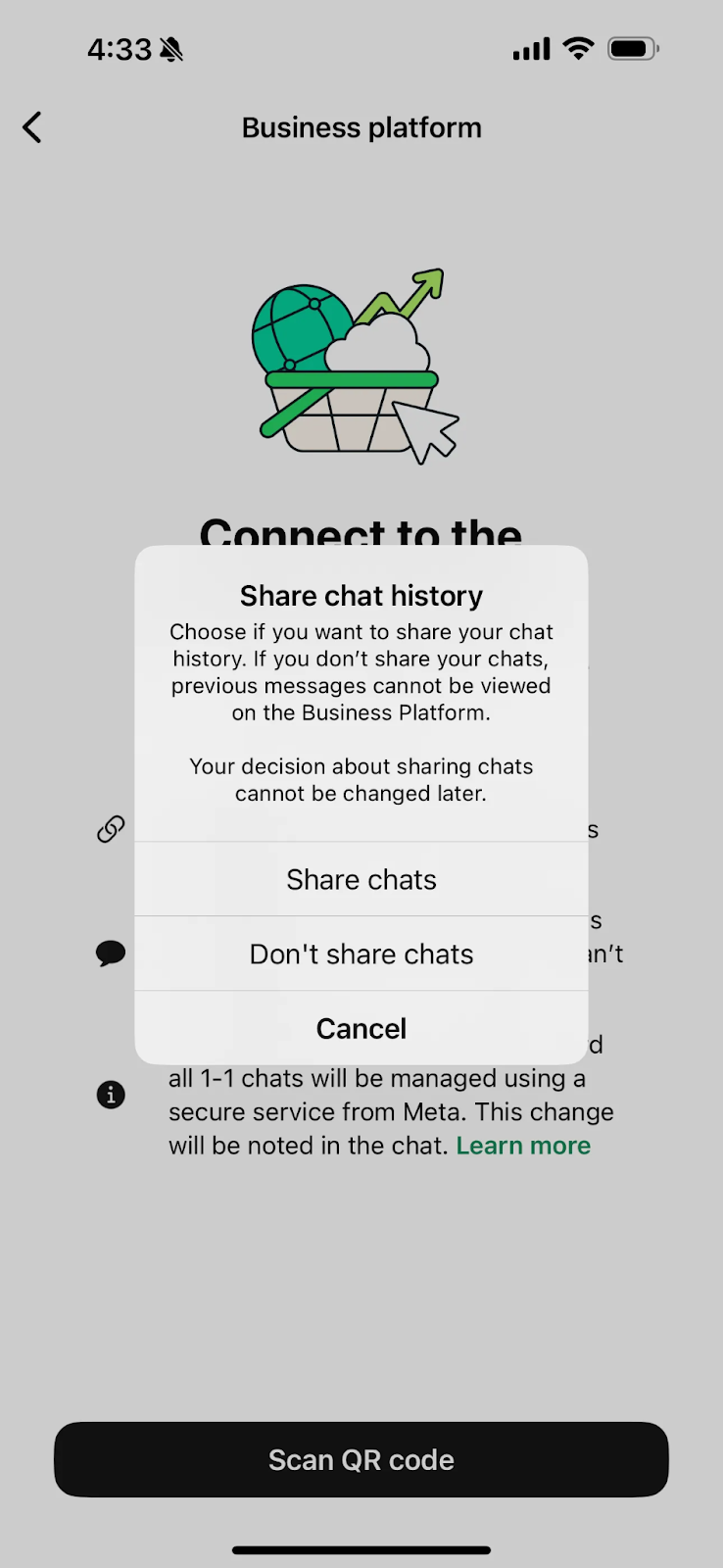
The Connect to the Business Platform screen opens on the phone. Tap Scan QR code and choose:
- Share chats — transfer the chat history from the phone;
- Don’t share chats — do not transfer it.
Finish the setup
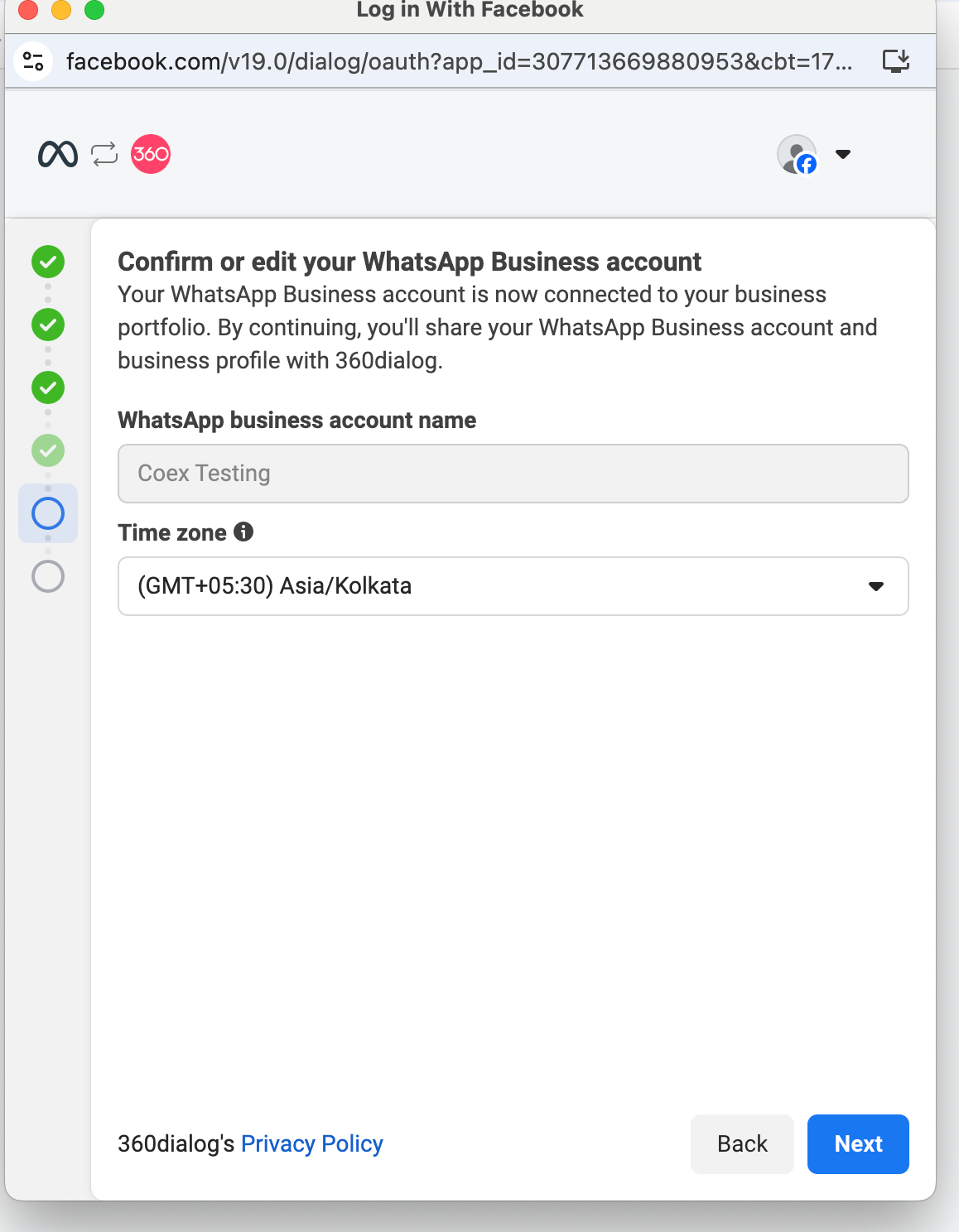
Check the WhatsApp Business account name and the time zone, click Next and go through the remaining steps.
What changes in the app on the phone
| Feature | How it works after onboarding |
|---|---|
| Broadcast lists | Disabled: new ones cannot be created, existing ones become read-only |
| Disappearing messages, View Once, live location | Disabled in individual chats |
| Linked devices | All of them are unlinked during onboarding. You can link supported ones again afterwards — WhatsApp for Windows and for WearOS are not supported |
| Group chats, channels, catalog, status, labels, quick replies, greeting messages | Work as before, but do not reach the CRM |
| Calls | Work in the app as before |
What reaches the CRM and what does not
It does reach the CRM:
- individual chats — both incoming messages and the ones you send from the phone;
- messages sent from RadistWeb, Kommo.com (amoCRM) and Bitrix24 also appear in the app on the phone.
It does not reach the CRM:
- group chats, channels and communities;
- calls;
- messages sent from companion devices that are not supported — for example, WhatsApp for Windows.
Pricing
- Messages sent from the app on the phone are free.
- Messages sent via the API (from RadistWeb, Kommo.com, Bitrix24) are charged under the usual WABA rules: to message a customer first you need a template; within 24 hours after the customer’s message you can write without a template — the first 1,000 such messages per month per number are free, then they are charged. See «WABA pricing from 01.10.2026».
- The subscription fee for the number is charged as usual.
How to keep the number connected
Do not uninstall the app — uninstalling disconnects the number from the platform.
What CoEx does not give you
- The green checkmark (Official Business Account, OBA) is not available for CoEx numbers. You can subscribe to Meta Verified for Business, but the blue badge does not carry over from the app to the platform.
- Changing the profile picture after onboarding.
- Automatic display name review — to start it you need to apply for Meta Verified.
- Migration between WABA accounts — the usual migration guides do not work for CoEx numbers.
- Calls via the API (Calling API).
How to turn Coexistence off
On the phone open Settings → Account → Business platform and tap Disconnect.
To remove the number from the subscription completely, follow «How to remove a number from a subscription in 360Dialog».
Frequently asked questions
The number is already connected to WABA. Can it be switched to CoEx?
No. The mode only works one way — from the WhatsApp Business app to the platform. If the number is already connected to the WhatsApp Business API, Coexistence onboarding will not work.
I did not share the chat history during onboarding. Can I do it later?
No. The decision is made once, during onboarding, and cannot be changed. The old history stays on the phone but will not appear in RadistWeb or the CRM.
How many CoEx numbers can be used in one business portfolio?
There is no stated limit — several numbers can be activated in Coexistence mode under one Meta business portfolio.
Will the number get the green checkmark?
No, the Official Business Account status (green checkmark) is not available for CoEx numbers.
What happens if the app is not opened for more than 13 days?
The account stops counting as active and the link between the app and the API breaks. This is not a ban: the number simply has to be connected again.