My Templates
Create My Templates in RadistWeb for frequent replies: set a title and text with emojis, edit or delete them, and insert into chats before sending to customers.
Templates–> my templates (the section is not available for employees with the “Manager” role)
“My Templates” are custom templates that can be created for more convenient communication with customers.
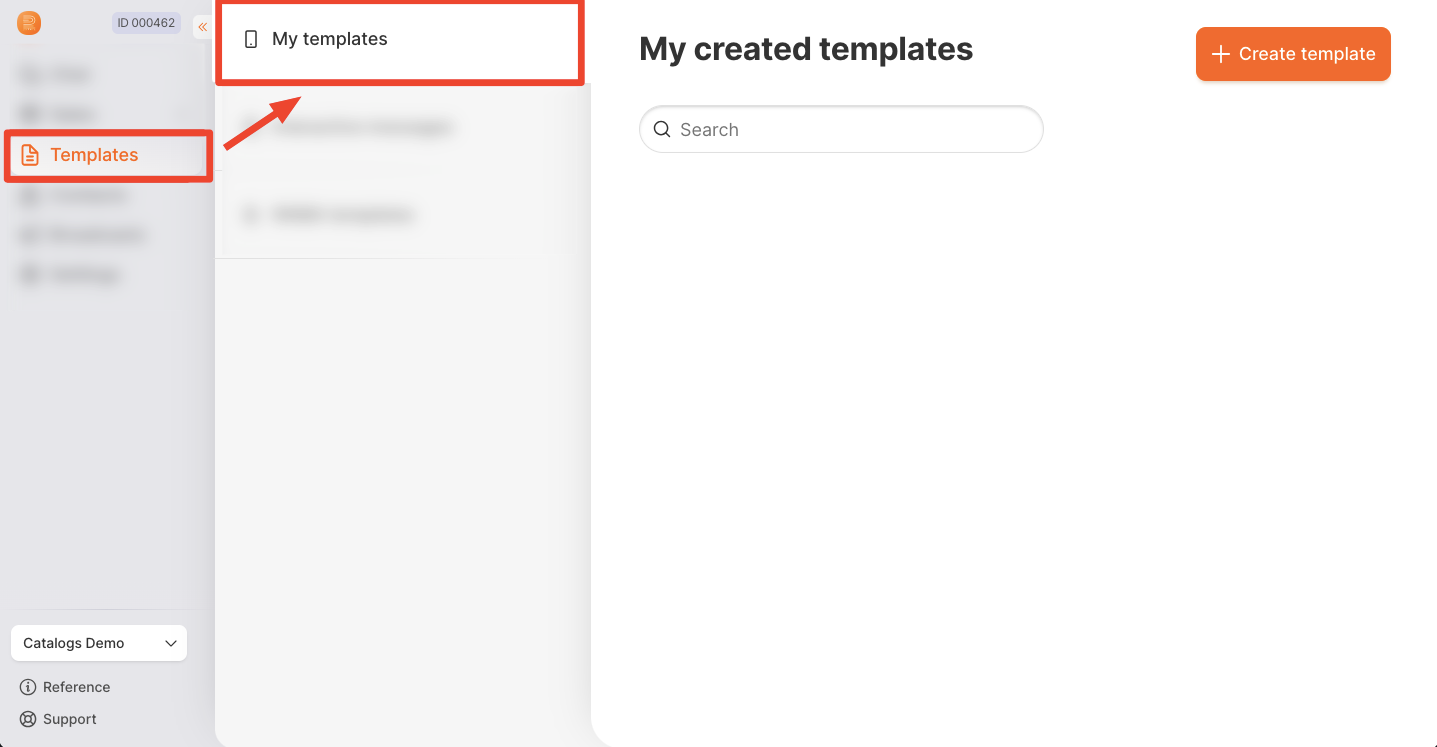
Creating a template:
❗️ Important:
The created “My templates” in our personal account will work/be displayed only in our personal account RaistWeb. In Kommo.com There won’t be any.
Templates Kommo.com and RadistWeb are separate and configured in their CRM system
The template is created by clicking on the “Create template” button
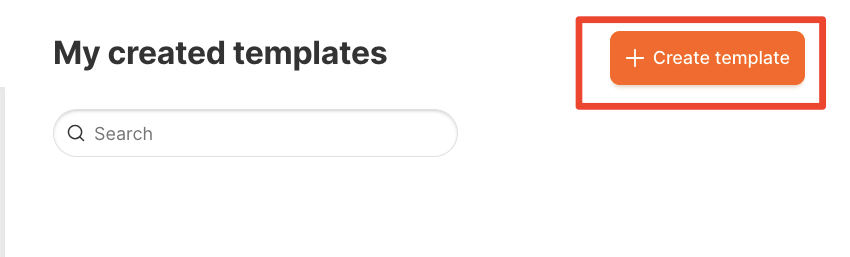
a window opens for creating a template:
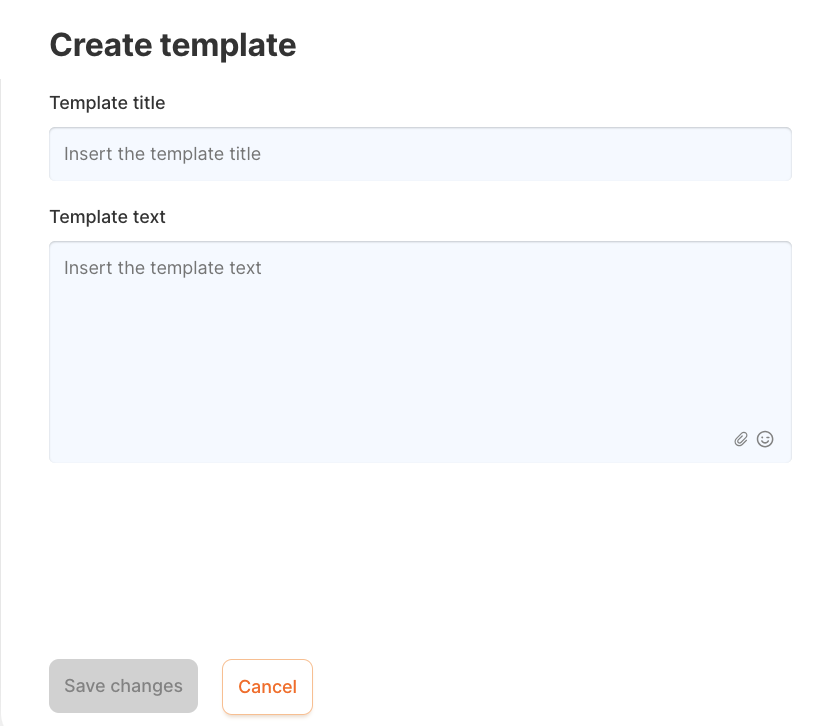
You can set the title and the text of the template itself, using emojis if necessary.
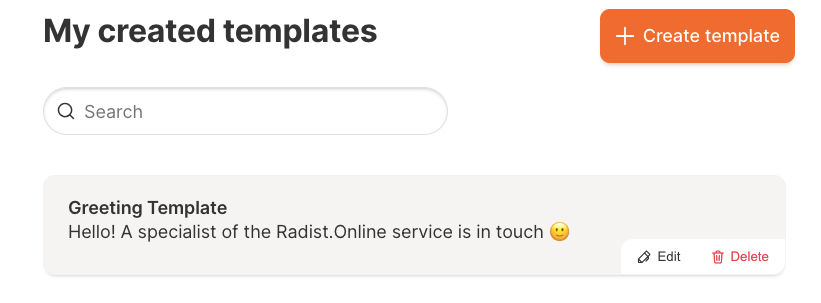
“My template” can be edited or deleted by clicking on the button in the template field:

Sending a template
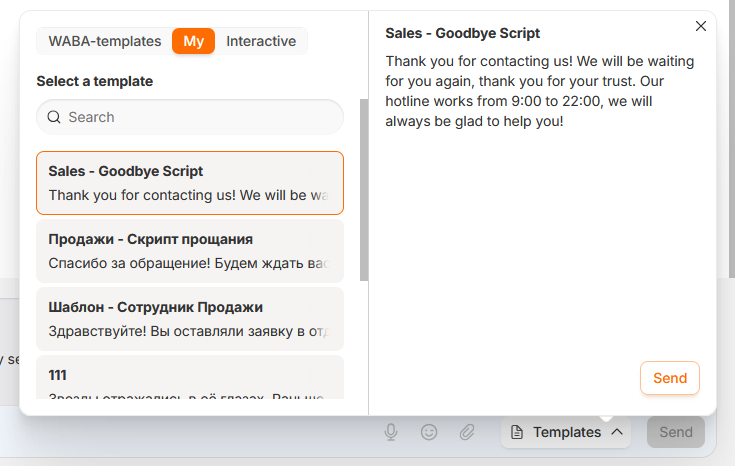
To select a template to send, in the chat window, click on the “templates” button, and set the switch to “My”.
When you select a template (the search works by the text of the template), the text is inserted into the message set field. This means that it is possible to edit or supplement the template before sending it to the client.
The template text and the document attached to it are inserted into the ordinary message input field, where you can edit the text, replace or remove the file and only then send it. It works the same way in the “Chats” section of RadistWeb and in the Radist.Online chat window inside amoCRM and Bitrix24, so there is nothing to relearn when you switch between the interfaces.