RadistWeb on your phone
RadistWeb on your phone: how to add your account to the home screen and open it like an app. Instructions for Safari, Chrome, Opera and Samsung Internet.
You can put your account on the home screen of your phone, next to your regular apps. Tapping the icon opens the account right in the chats, without the browser address bar — it looks and feels like an app.
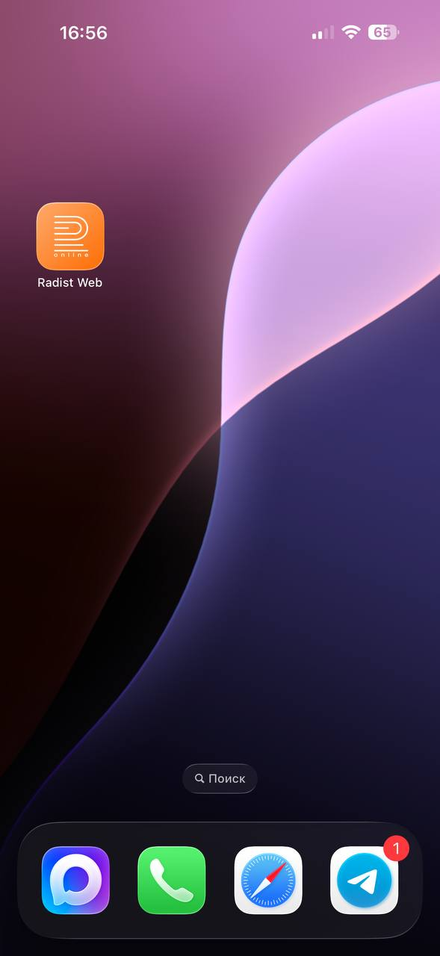
How to add the account to your home screen
Open your account in the phone browser
Open the login page on your phone, in any browser.
Log in
This step is required. Add the shortcut after you log in — otherwise the login screen will appear every time you open it.
Open the browser menu and choose to add it to the home screen
The item is named differently in different browsers: “Install”, “Add to Home screen”, “Add shortcut”. See the table below for where to look.
Confirm the name and save
The Radist Web icon appears on your home screen. Done — the account opens with a tap.
Where to find the item in different browsers
| Browser | What to tap |
|---|---|
| Safari on iPhone | The “Share” button → “Add to Home Screen” |
| Chrome, Edge and Firefox on iPhone | The “Share” button → “Add to Home Screen” (requires iOS 16.4 or newer) |
| Chrome on Android | Menu (three dots) → “Install”. In older versions the item is called “Add to Home screen” |
| Samsung Internet | Menu → “Add page to” → “Home screen” |
| Opera on Android | Menu → “Add to” → “Home screen” |
The names of the menu items depend on your phone, your browser and its version. Browsers are updated regularly, so what you see may not match the table exactly.
If you cannot find the item, look for one that means the same thing: “Install”, “Add to Home screen”, “Save shortcut”. Still not there — write to us, we will help with your browser.
“Install” and “Create shortcut” are not the same
In Chrome on Android the menu may contain both items, and they do different things:
- “Install” — the account opens in its own window, without the address bar. This is what makes it look like an app.
- “Create shortcut” — the icon appears on the screen too, but the account opens as a regular browser tab.
If you want the app-like view, choose “Install”.
What works from your phone
Every section of the account opens on a phone, and some of them are already adapted for a small screen. Here is what works exactly as it does on a computer.
Chats
The “Chats” section is adapted for the phone.
| Feature | How it works on a phone |
|---|---|
| Replying to a specific message (reply) | The same as on a computer. More → |
| Quick access to templates with “/” | Works: “/” as the first character opens the list of templates. More → |
| Attaching files | The same mechanics: up to 10 files, up to 100 MB each. More → |
| The “No reply required” button | Follows the same rules as on a computer. More → |
| Message draft | Type the text on a computer, open the account on your phone — the text is still there. More → |
Notifications about new messages
The account on your phone can notify you about new messages like a regular messenger, even when it’s closed. It works on both Android and iPhone. Turn it on once on each phone:
Open “Profile”
Open the account from the home screen icon and go to “Settings” → “Profile”.
Turn on “In-app notifications” and “Push notifications”
First “In-app notifications”, then “Push notifications” — the second switch won’t turn on without the first.
Allow notifications
The phone asks for permission — tap “Allow”.
You don’t need to reinstall the home screen shortcut.
The menu
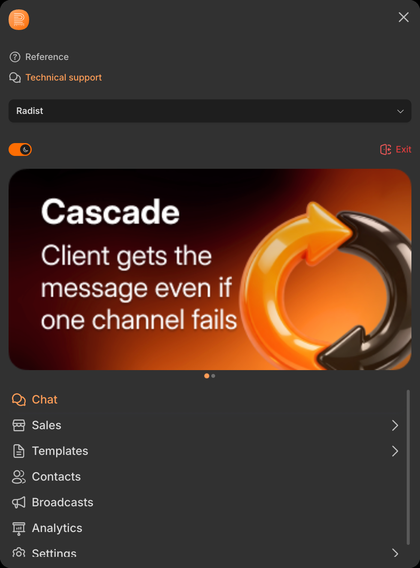
On a phone a section with subsections opens as a second screen: you tap the section and get the list of its subsections together with a “Back” button.
The theme
The dark theme works on a phone too. The switch sits at the top of the menu, under the company name, with the “Exit” button next to it.
Contacts
The contact card is laid out in a single column — the fields go one under another, which makes it easier to read and fill in from a phone.
Subscriptions
The “Change” (plan) and “Edit” (number of phone numbers) buttons are available right in the collapsed subscription card.
📌 How to recalculate or transfer subscriptions →