Telegram Integration connections to Kommo.com
Connect the Telegram integration to Kommo.com: enable it in Settings, link your number, set the funnel and status for new deals, and start chatting from the CRM.
Go to Settings –> Integrations (the section is available for employees with the “Owner” and “Administrator” roles) –> the necessary Telegram+Kommo integration in the “Available” section
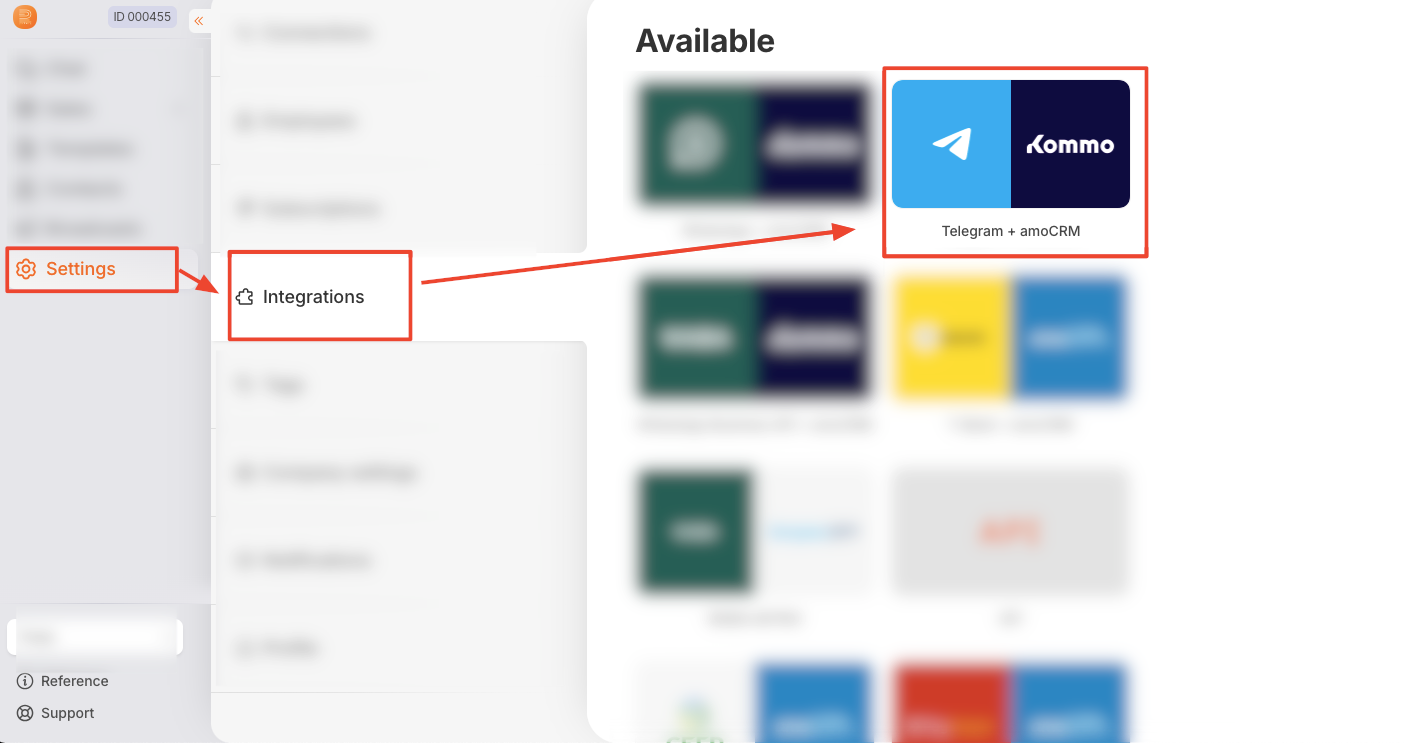
When you click on the integration in the “Available” section, a window opens with a description of the integration functionality and a button to enable integration.
Click the “Connect integration” button
“Connect to Kommo.com " - if your domain is located on Kommo.com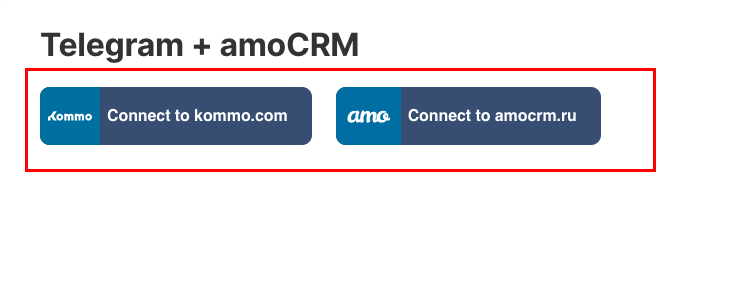
If your Kommo.com account is already authorized, the system will prompt you to select the account to which you want to connect the integration.
Refresh the page - go back to the “Integrations” section.
After logging in to Koomo.com or selecting an Kommo.com account, the integration will be automatically added to the “Installed” category in RadistWeb.
Integration also remains in the “Available” category, since if necessary, you can connect integration with another Kommo.com domain.When you click on the “Telegram+Kommo.com” integration from the category of installed integrations, the integration settings window opens.
Click the “+Add a phone number” - Select the number you want to connect to this Kommo.com account - click “Add”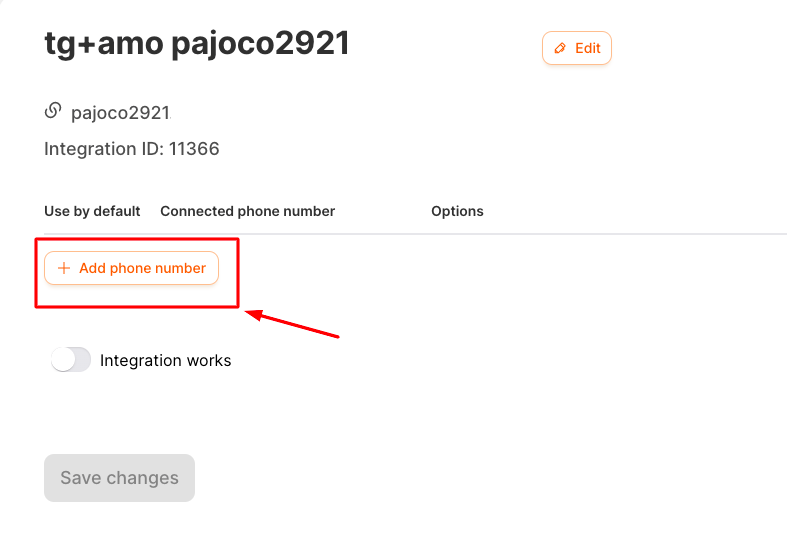
The number will be added to Kommo.com, set the Funnel and status for creating deals.
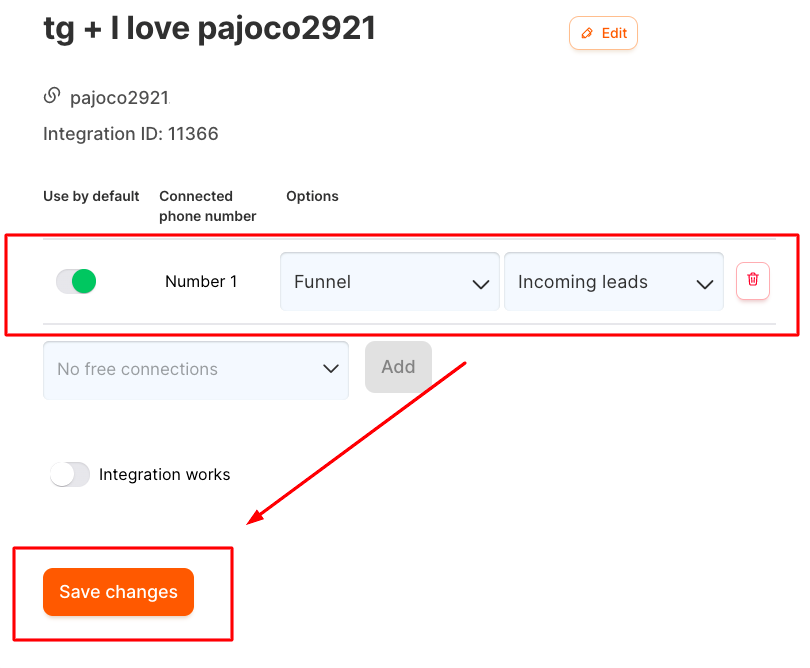
⚠️ If the Integration Enabled slider is turned off, a confirmation pop-up will appear when trying to save changes.
When you click on “Enable” in the confirmation window, the changes are saved and the integration is enabled.
When you click on the “Save without enabling” confirmation window, the changes are saved without enabling integration.
If you close the confirmation window, you will return to the process of making the change.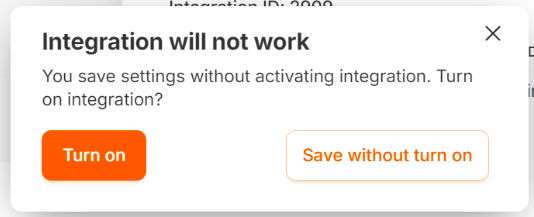
For each Telegram number, you can set your funnel and your Undelivered status.
The “Write from number” toggle switch is to turn on the number from which salesbot in Kommo.com will start initiation.
Toggle switch “Integration enabled” - enables/disables integration on a specific Kommo.com account for all connected numbers.
After making any changes on the page, click “Save changes”.
8. From now on, Telegram + Kommo.com integration is active.
Responsible employee for a connection
In the integration settings each number or bot has an “Employee” column. The employee you choose there is automatically set as the responsible user in the deals and contacts created from the chats of that number or bot.
- The list of employees comes from Kommo.com itself, not from your RadistWeb staff — these are two different lists. Start typing a name to filter the list.
- The field is optional. Leave it empty or clear it at any time — the integration keeps working, and deals are created for the integration owner, as before.
- Choosing an employee does not restrict anyone else: all your staff can still write first from this number.
- One employee can be responsible for several numbers or bots.
- The “Incoming leads” (“Unsorted”) pipeline is an exception. If deals are created there, the responsible user from this setting is not applied — the rules of incoming leads work instead. If the responsible user matters to you, set up deal creation in a separate pipeline.
- If the chosen employee is deleted in Kommo.com, the field becomes empty and new deals are created for the integration owner again.