Telegram+Kommo.com
revision 4 of 22.10.24
The name amoCRM has changed to Kommo.com
Log in to the Radist Web LC or register using the link: https://radist.online/login
If you are a PARTNER:
- LC is NOT a partner’s personal account. It is not intended to connect all the partner’s clients to it. A SEPARATE LC is issued for each client.
- YOU do NOT need to test-connect integration with the client’s account to your personal LC, then you will not be able to transfer the integration to the client’s LC.
- LC to the client, create a separate one for the client’s contact details, so that the CLIENT is the account owner.
- When registering a company, specify YOUR PROMO CODE.You can add yourself to the client’s personal account as an administrator to make settings. *For the convenience of the partner and the client, you can use a link, when clicking on which the promo code will be inserted automatically. How the link works, see the instructions https://docs.radist.online/radist.online-docs/partneram/promokod-partnera
To enable integration with Telegram, first a number is added to the personal account, then the added numbers are connected to Kommo.com in the same personal account
To connect a number to your personal account:
Go to Settings –> Connections –> Select “Telegram” (only owners and administrators of the personal account have access)
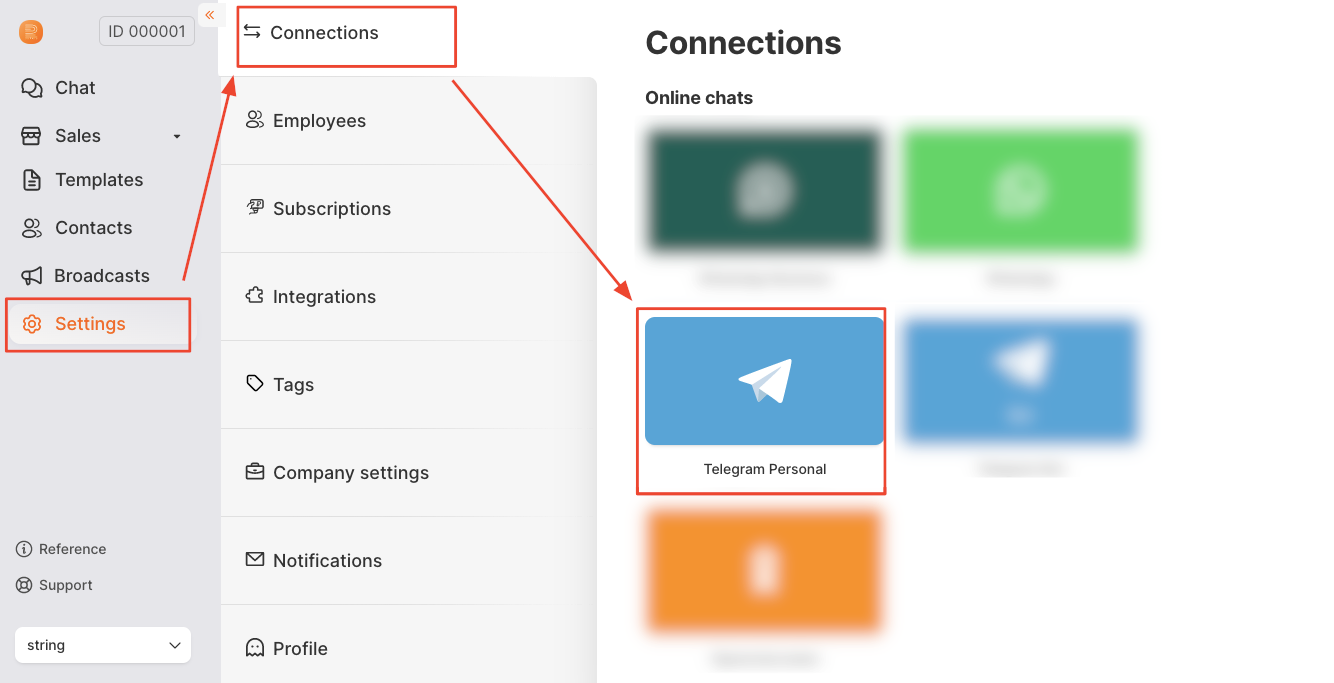
Click “Connect”
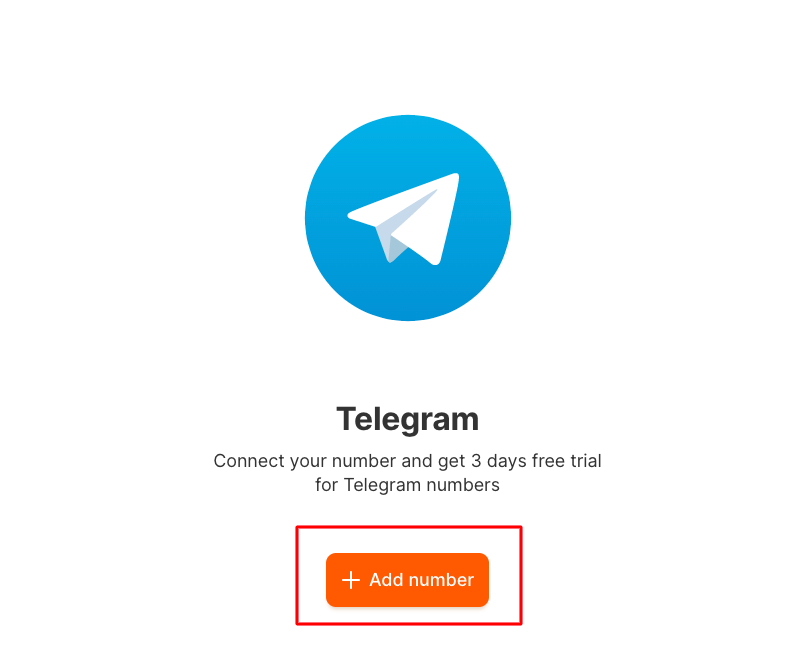
The number connection page opens:
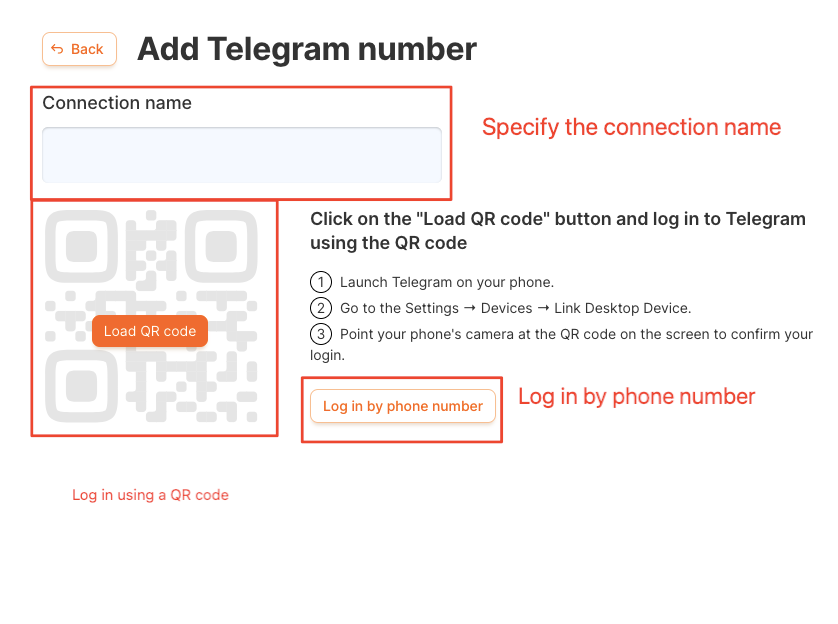
On this page, you need to:
- Specify the “Connection name” (this name will be displayed in the list of communication channels in amoCRM)
- Log in to the number in one of 2 ways:
- Or scan it using the QR code via the Telegram app *Or log in by phone number
▶️ If you have chosen the authorization path using the QR code:
- Click on the “Upload QR Code” button and log in to Telegram using the QR code Launch Telegram on your phone.
- Go to Settings - Devices - Connect Device.
- Point your phone’s camera at the QR code on the screen to confirm entry.
▶️ If you have selected “Login by phone number” :
A code will be sent to the entered phone number in the Telegram application, you need to enter it in the window that appears
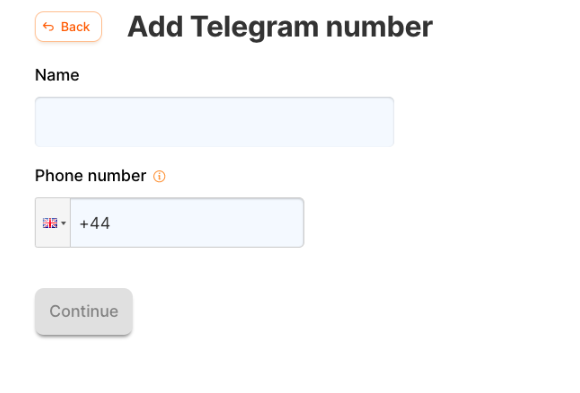
- A code will be sent to the entered phone number in the Telegram application, you need to enter it in the window that appears
The code can be requested again in a minute (the “Request code again” button will become active).
- If two-step authentication is enabled on the number (in the Telegram settings on the number), then after step 4 a password field will appear (the password is set by you in the Telegram settings when two-step authentication is enabled).
Next, click the “Connect number” button.
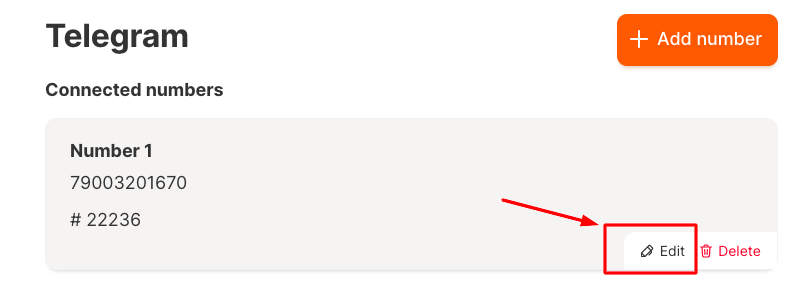
A page with the connected number will appear and a notification “The number is successfully connected”.
When you click on “Edit”, you can change the connection name.
- The added number is connected to the Kommo.com in the next section.