How to enter into a transaction in Kommo.com from Radst.Online
Open or create a deal in Kommo.com from the Radist.Online widget: use the Select Deal button to view a contact's transactions and start new ones in one click.
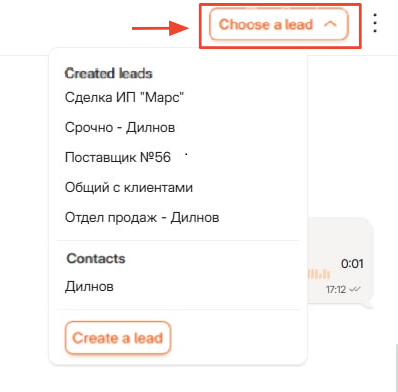
When opening a chat with a client in the widget, the “Select deal” button is displayed at the top of the window.
Button Functions
Clicking on the button opens a drop-down menu where actions are available.:
- open a contact transaction in Kommo.com in a new tab;
- open the contact page in Kommo.com in a new tab;
- create a new deal in Kommo.com in a new tab.
The “Created transactions” section
- It displays a list of all Kommo.com transactions to which this contact is linked.
- If the contact has no transactions, you will see a stub: “No transactions created”.
- The names of the deals are displayed in the same way as in Kommo.com.
- The list of deals is updated every time you click on the “Select Deal” button.
The “Contacts” section
- A list of all Kommo.com contacts associated with this contact in RW is displayed here.
- If there are no contacts (for example, integration has been disabled), a stub will appear: “No contacts”.
- The contact list is updated automatically when the chat is reopened.
Creating a new deal
The “Create a deal” button is located at the bottom of the drop-down menu.
Clicking on it will open the page for creating a new deal in Kommo.com.
Was this article helpful?
Last updated on