How Radist.Online works in Kommo.com
ed. 3 dated 14/10/25
🛠 How to install the widget
The widget must be installed through the personal account of RadistWeb.
After installation, the widget will appear in the CRM interface (see below).
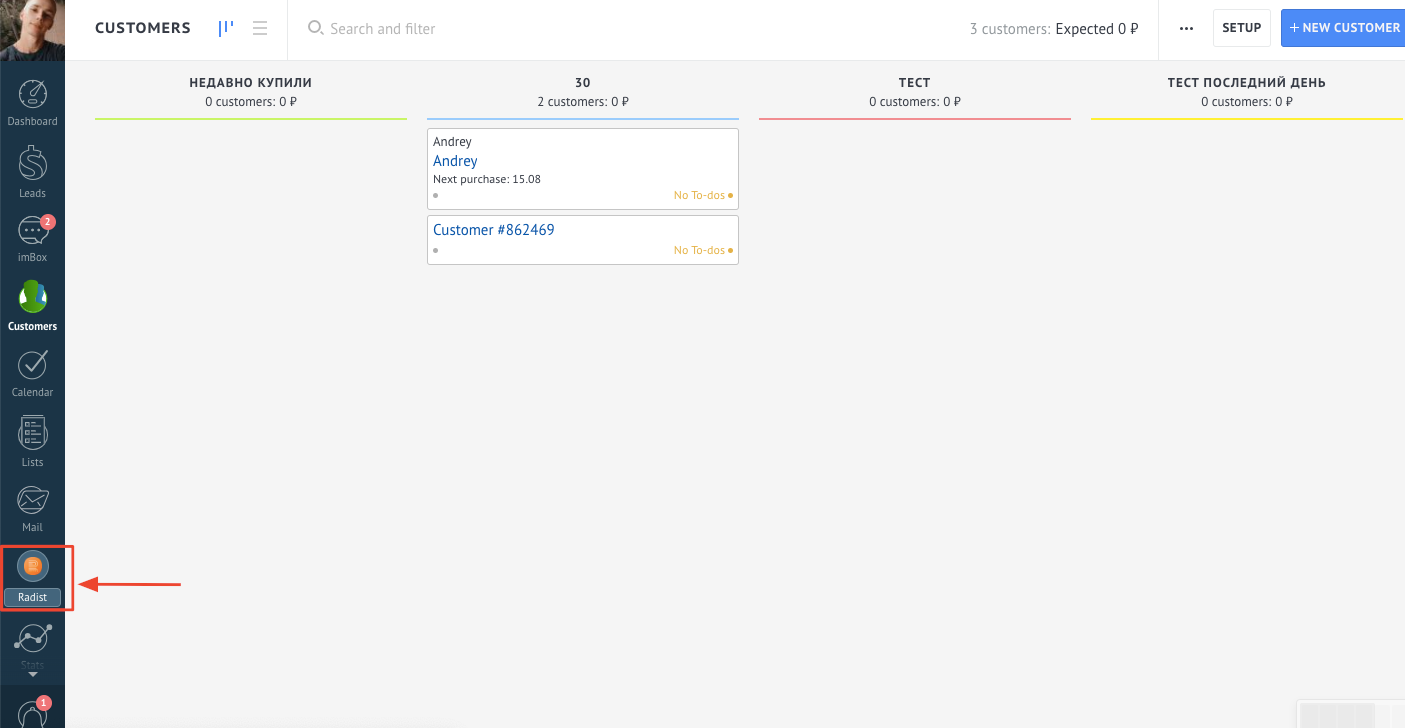
How Radist.Online works in Kommo.com:
🗂 Where can I open Radist.Online widget?
The widget can be opened from the following sections Kommo.com:
- Left Side menu
- Transactions (funnel) → Transaction card
- Inbox → Deal
- Buyers → Contact
- Lists → Contacts → Contact
📌If you do not open Radist.Online through the left menu (that is, not full—screen), then a cross will appear in the upper-left corner of the window. You can use it to close Radist.Online widget and return to viewing the transaction or contact.
The widget will also close automatically when switching to another section or transaction.
- CRM left side menu — opens to full screen;
🎥 Video: “How Radist.Online from the left side menu works”
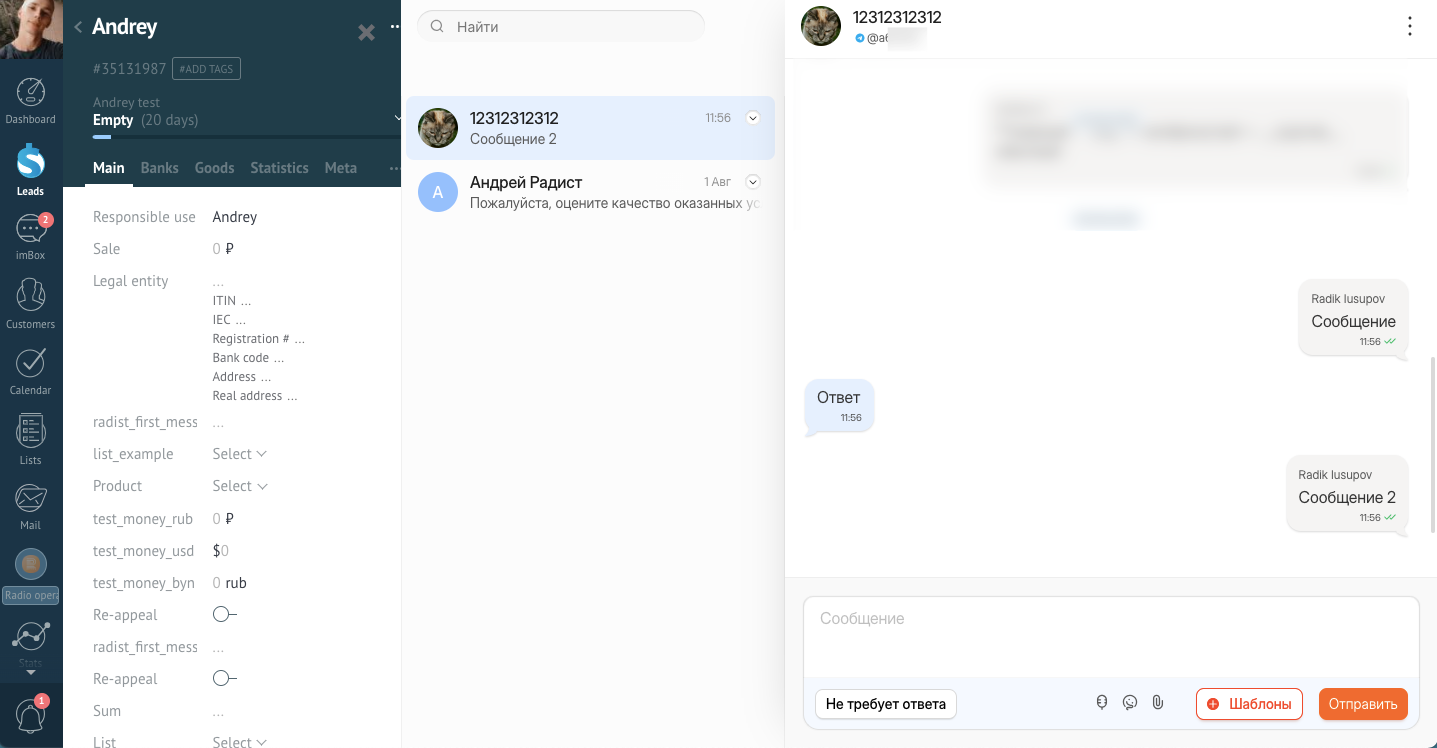
The widget can also be opened from the transaction card. To do this, select Radist in the right side menu of the widgets.
🎥 Video: “How Radist.Online from the deal works"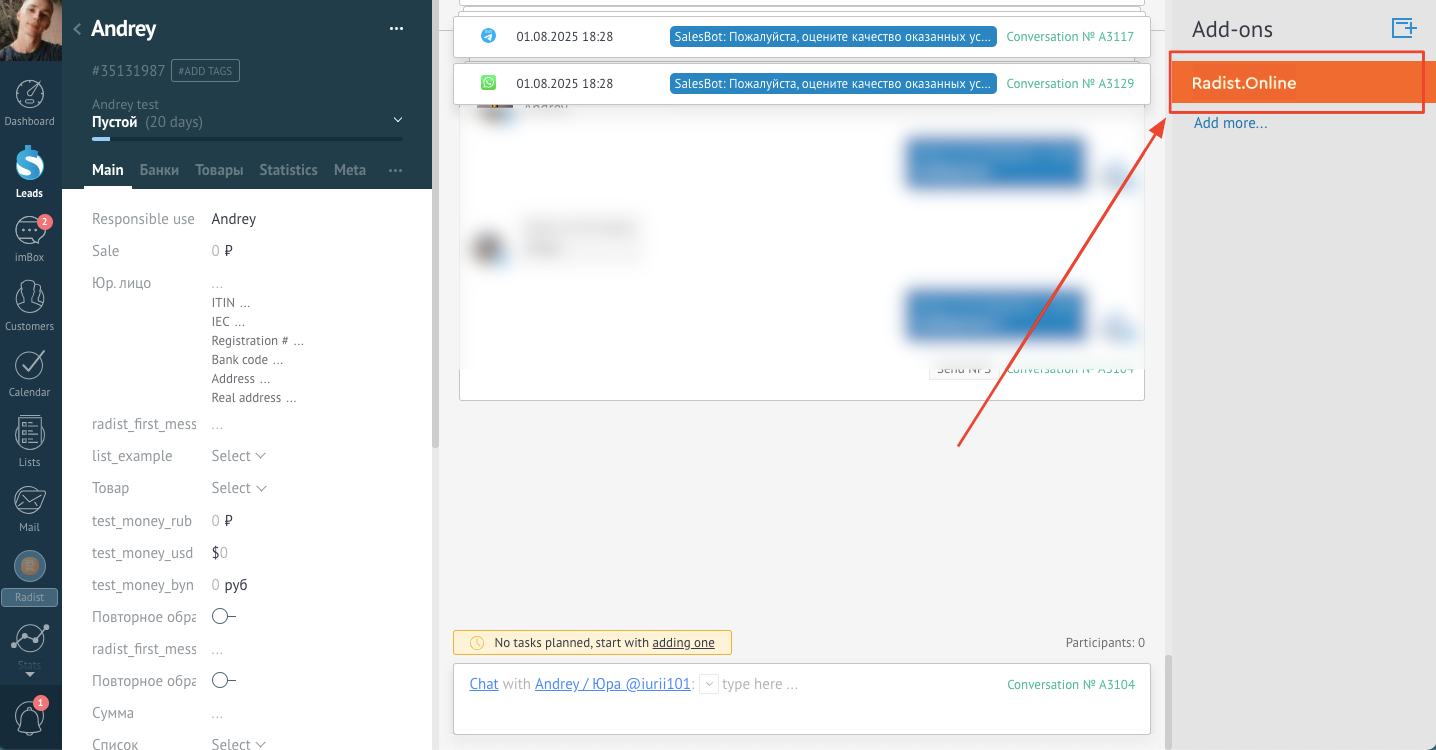
A window will open in the transaction communication area, while the transaction information (if expanded) will remain visible.
The widget can also be opened from the contact card — select Radist in the right side menu of widgets.
The window will open in the area of communication with the contact, and the contact information (if expanded) will remain visible.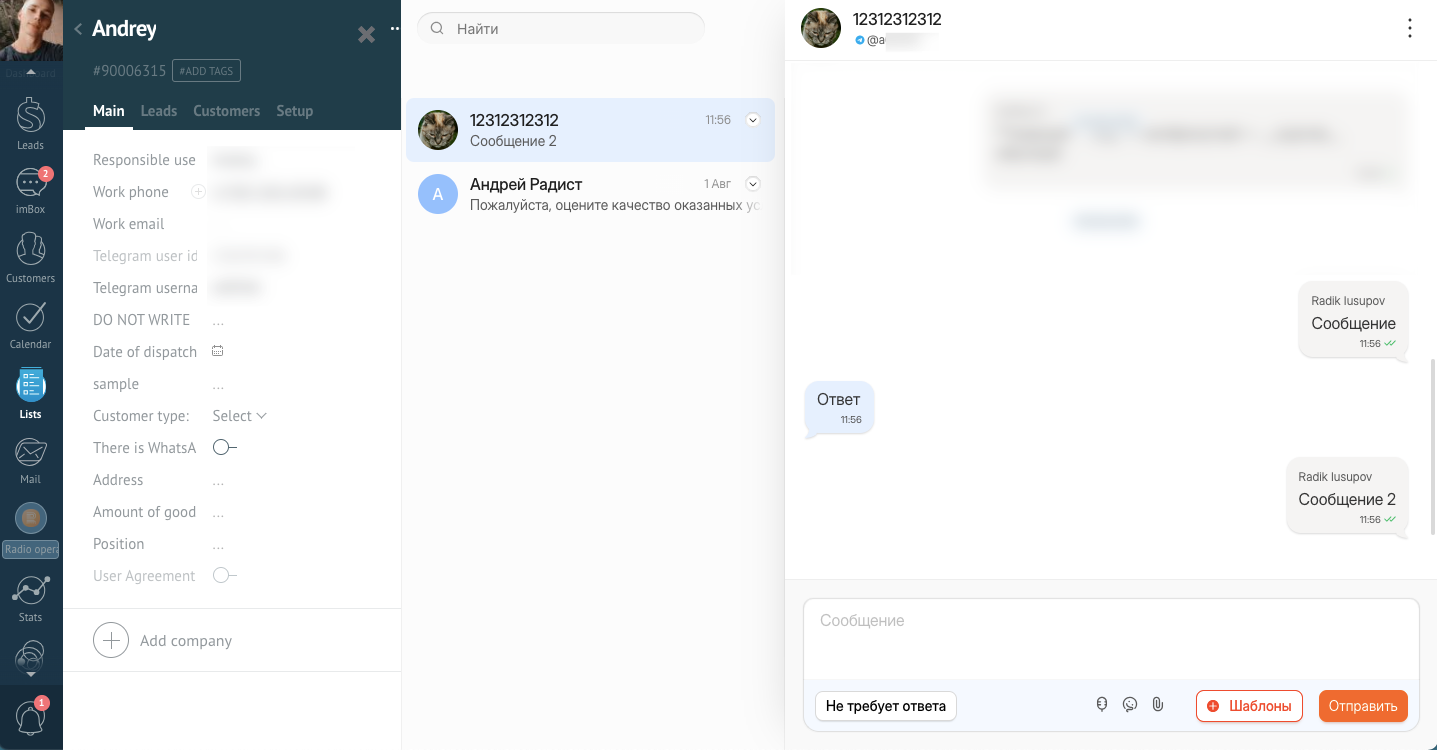
🖥 Interface of Radist.Online widget
After opening the widget, a chat page is displayed.
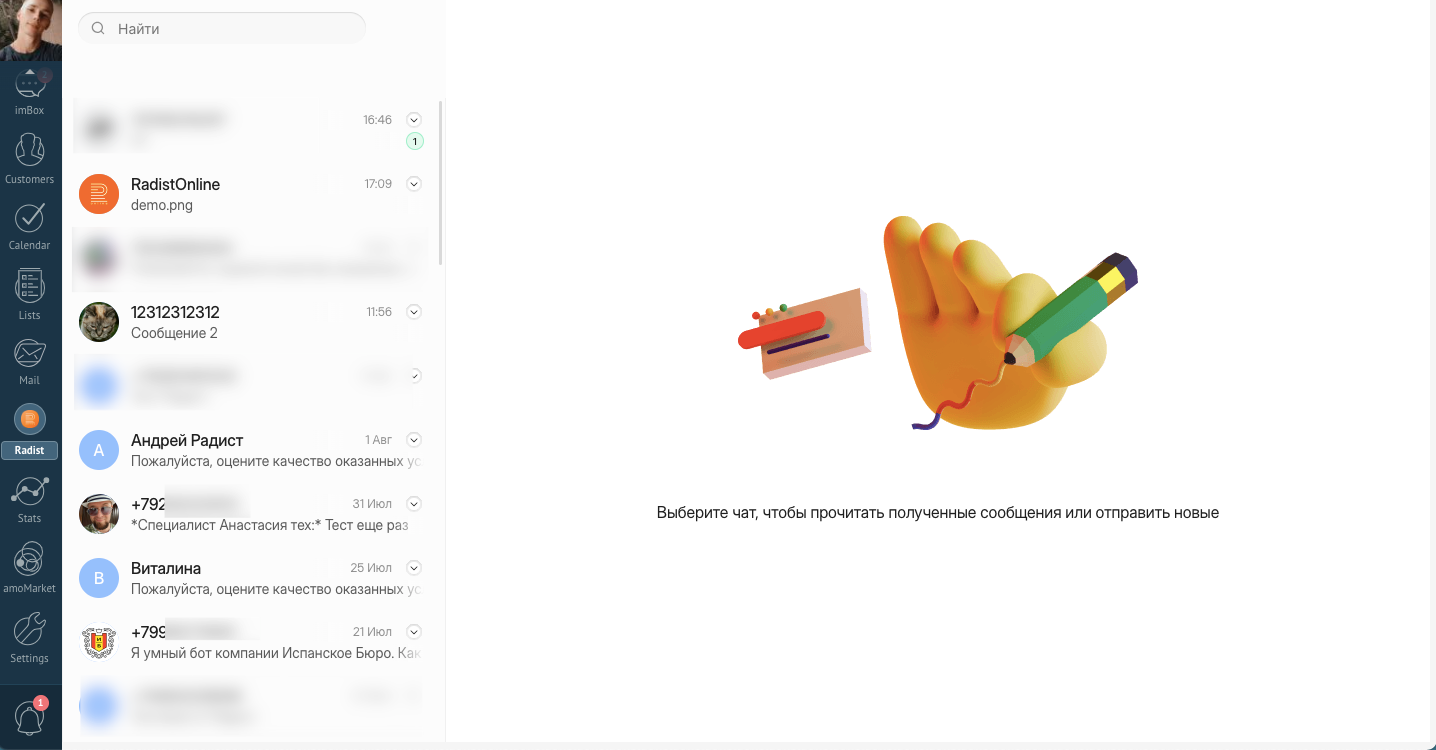
📋 Chat list
The list shows contacts from RadistWeb.
For each contact, you can expand the list of their chats and select the desired one.
If you just click on a contact, the last active chat with them will open.
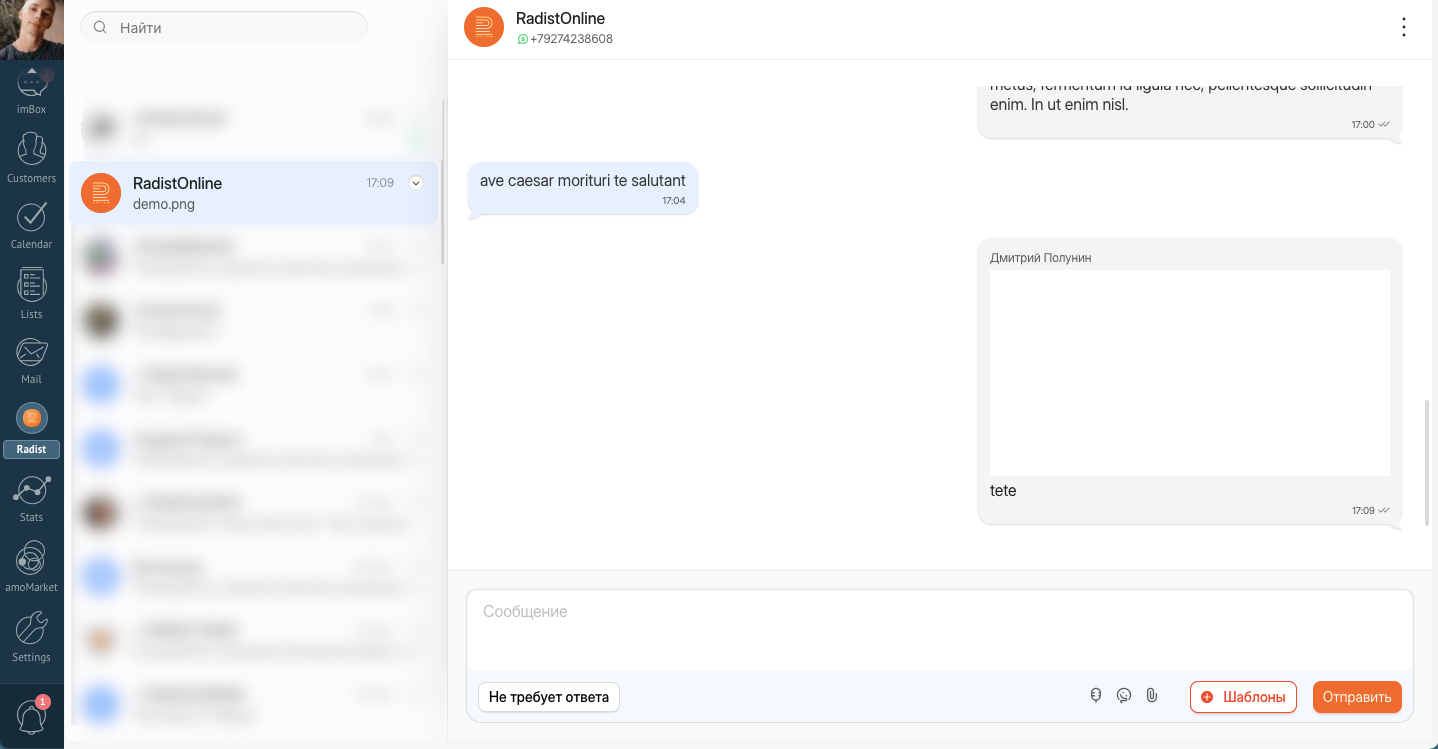
🔍 Chat search
- It is available in the widget opened via the left side menu.
- The search works on the part of a string (from 4 characters).
- Search is supported by:
- contact name,
- phone number,
- Telegram username.
👥 Group chats
- Visible only to administrators.
- They are displayed only when the widget is opened through the left menu.
🕓 Unanswered messages
- Chats with unanswered messages are marked in the list.
- In the chat, you can click the “No response required” button to remove the mark and lower the priority of this chat.
💬 What is available inside the chat
You can:
Send and receive messages
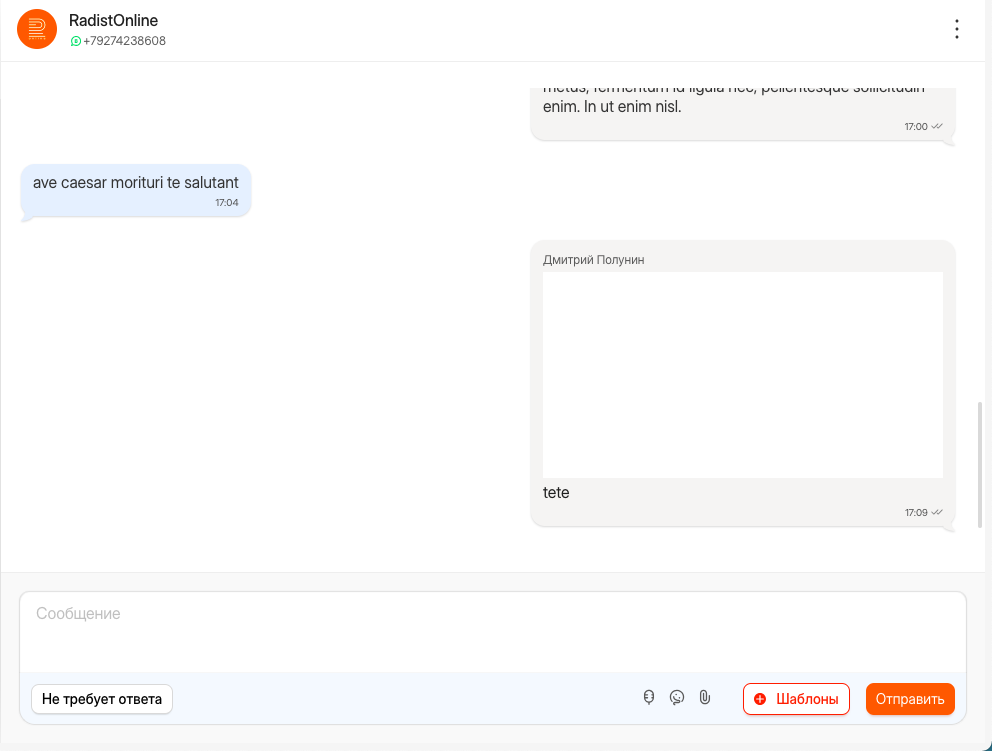
Send templates (from RadistWeb)
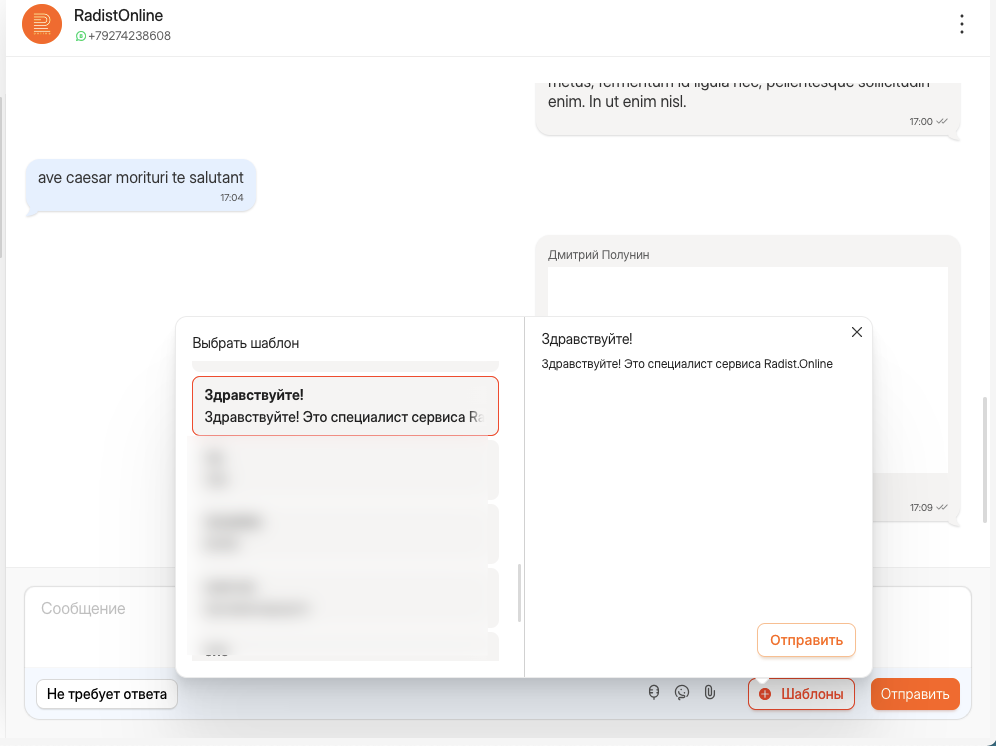
Use emojis, send files and voice messages
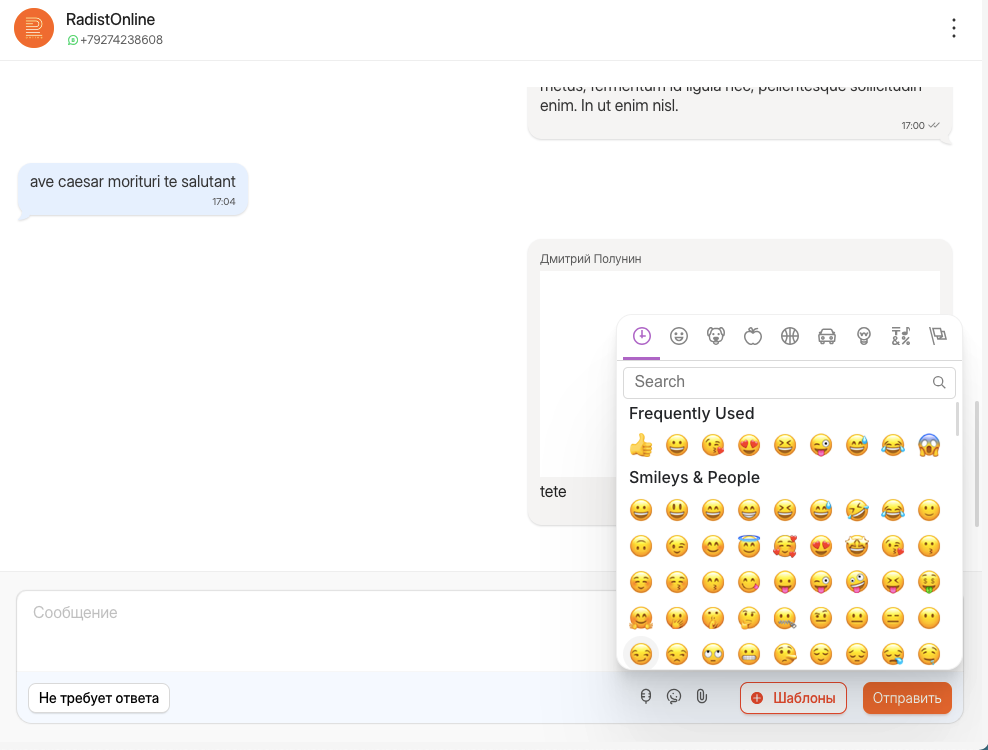
Receive baskets and view their contents
Watch images, videos, and listen to voice messages directly in the chat
Open previews of some files
Work within the framework of the 24-hour Dialogue (WABA)
Uncheck “unanswered message” with the “No response required” button
🆕 Creating a chat in the RadistWeb widget in Kommo.com
Now you can create new chats directly from the widget in Radist.Online.
🔹 Where is the chat creation button
The general “+” button is next to the chat search field.
Additional “Create chat” buttons are located under the chat lists of a specific contact.
(see screenshot)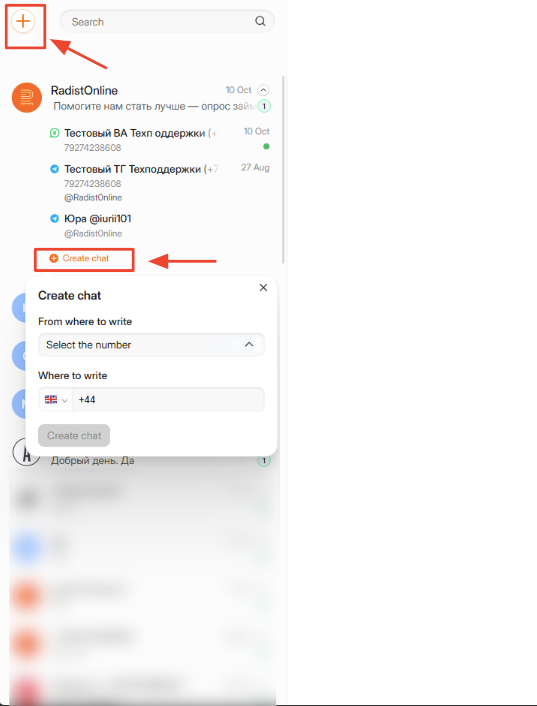
⚙️ How to create a chat
- Click the “+” or “Create Chat” button.
- In the field “Connect” select the desired channel (from the list of connections in your Personal RadistWeb Account).
- In the “Phone number” field, enter the number of the contact you want to start a chat with.
- If the Telegram connection is selected, you can switch to entering the Telegram ID instead of the phone number.
- Click “Create a chat".
⚠️ Possible notifications and errors
| Situation | Message |
|---|---|
| The chat already exists and is available to the employee. | “Such a chat already exists. Click on the button below to access it.” → the “Go to” button |
| The chat already exists, but there is no access. | “Access to the chat is limited. Contact your CRM administrator.” |
| The connection is not in the subscription | “The connection is not included in the active subscription.” |
| Subscription not paid for | “The subscription is not paid for.” |
| Authorization error | “Authorization error. Try again later.” |
| Incorrect number length | “Enter the correct phone number.” |
| Not registered in WhatsApp | “The user is not registered in WhatsApp.” |
| The contact was not found | “No contact found.” |
🔗 Linking a chat to a contact
- Linking is performed by phone number or user ID (similar to the Personal Account of RadistWeb).
- If a chat is created within an existing contact, the contact details will be updated automatically.
⛔️ The ability to add a chat to a Blacklist:
In the chat interface Kommo.com An additional action is displayed for administrators — “Lock / Unlock”. This action is available in the chat options list.
When you click on “Block”, the contact is added to the Blacklist in the personal account of RW .
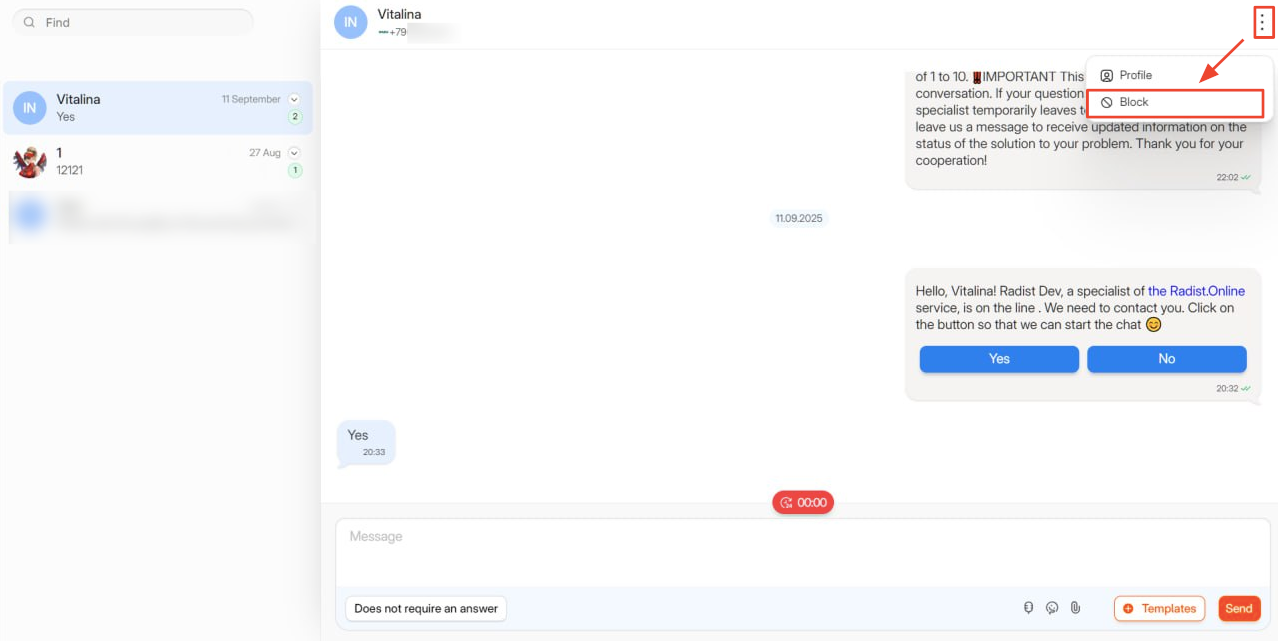
When you click on “Unlock”, it is removed from the Blacklist.
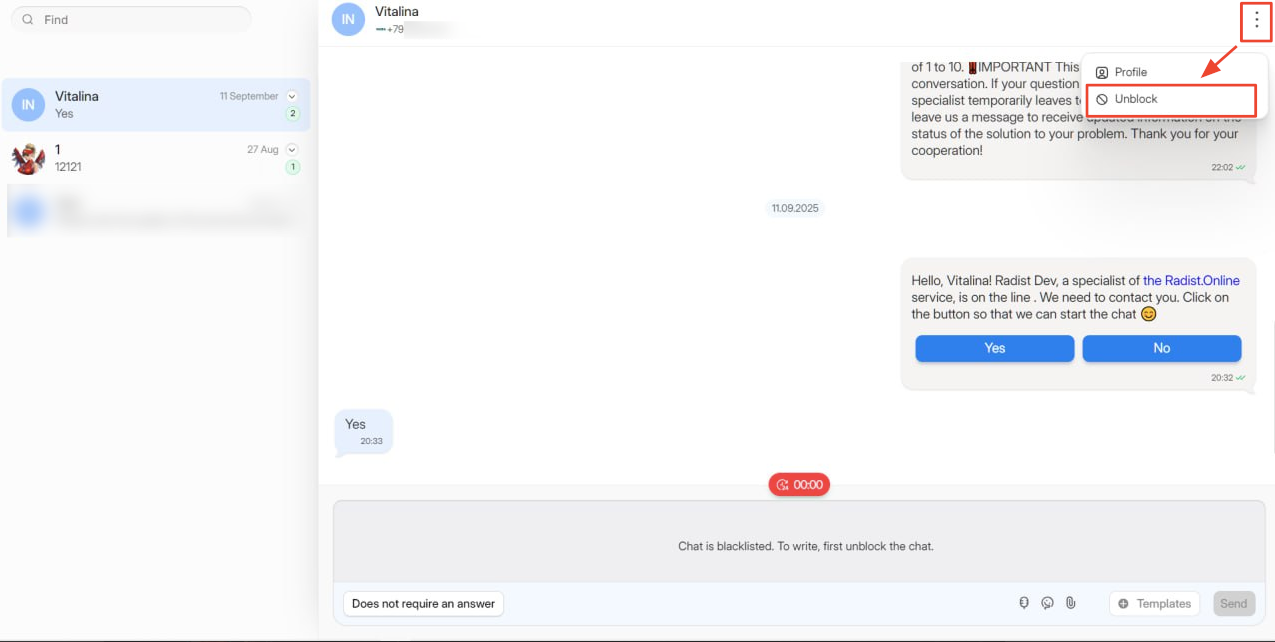
After being blocked:
- The message input field in the chat becomes unavailable.
- Sending and receiving messages is blocked.
For users without administrative rights in Kommo.com The chat lock/unlock option is not displayed.
⚠️ Errors and limitations
- Errors in sending messages are highlighted in red, and when you hover over “!”, the reason is shown.
- The name of the CRM employee who sent the message is displayed at the top of the outgoing message.
- There may be restrictions on sending messages if:
- there is no active subscription,
- WABA templates have not been paid
- and the chat is blocked (in case of emergency).
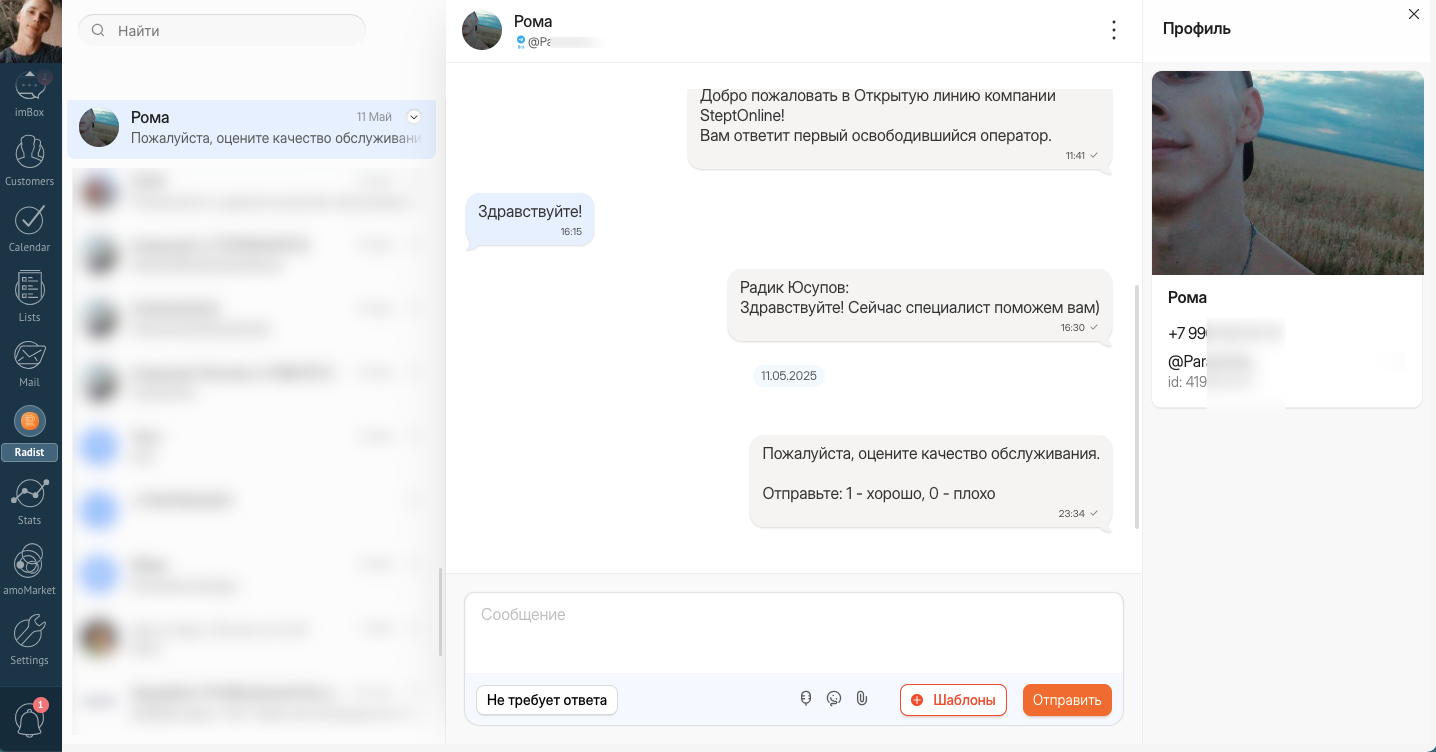
📂 Additional menu: “Profile”
There are two ways to open a contact profile:
- Click on the contact’s name at the top of the chat;
- Select the “Profile” item in the additional actions menu (three-dot icon).
Select the “Profile” item in the additional actions menu (three-dot icon).
The profile that opens currently displays (if available):
Contact’s profile picture
Contact’s name
Phone number
TG username and Tg user ID
Email
👥 Working with employees
In order for an employee to use the widget, when Radist.Online is opened for the first time, his profile in RadistWeb is automatically created — with the name and mail from CRM and the role of “Manager”.
📌 Access to chats
If the widget is opened from the transaction card:
- The Radist.Online will display all the contacts related to this transaction.
- If one contact in CRM has multiple entries in RadistWeb, all of them will be shown in the list.
- If an employee does not have access to a transaction in CRM, they will not be able to open a Radist.Online widget for it.
If the widget is opened from a contact’s card:
- One or more chats associated with this contact will be displayed in the window.
- The chat will open, through which the last communication was conducted.
- If you do not have access to the contact in the CRM, Radist.Online widget cannot be opened.
🔐 Who sees what
When opening the widget through the left side menu:
- Admin:
- Sees all chats and contacts, including group chats. - An ordinary employee (not an admin):
- Sees only those contacts and chats to which he has access by rights in CRM.
- If the employee does not have access to the contact, the chat with him is also unavailable.
🌍 Widget interface language
The language of Radist.Online widget interface automatically depends on the language set in your Kommo.com
Working rules:
- Russians Russian is selected in Kommo.com, → the chat will be displayed in Russian.
- If Spanish is selected in Kommo.com → the chat will be displayed in Spanish.
- If English or any other language is selected in Kommo.com, → the chat will be displayed in English.
Important:
After changing the language in Kommo.com, the chat in the widget will be updated within 10 minutes.
🔧 Additional information
- To update the data on those responsible for the transaction, you need to reopen the widget from the transaction card (via the right menu).
- Currently, messages from Radist.Online widget are displayed as sent by the Radist bot. This behavior will be changed in future updates.
- The functionality becomes available immediately after installation, but it is better to wait 1-2 minutes before using the widget.