Create a chat
Create a chat in RadistWeb to message a new client: pick the sender number, enter the recipient, and start a conversation, or open an existing chat.
To write to a new client you haven’t chatted with in RadistWeb yet, create a chat manually — choose which number to write from and which number to send the message to.
How to create a chat
Open the create-chat form
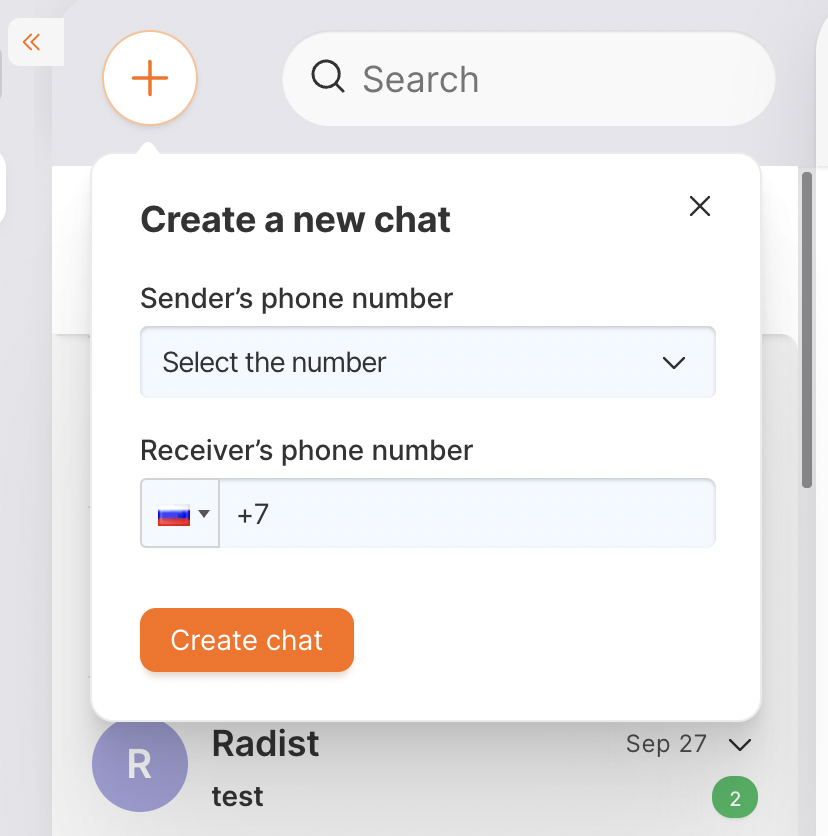
Click the + icon above the chat list.
Choose who to write from
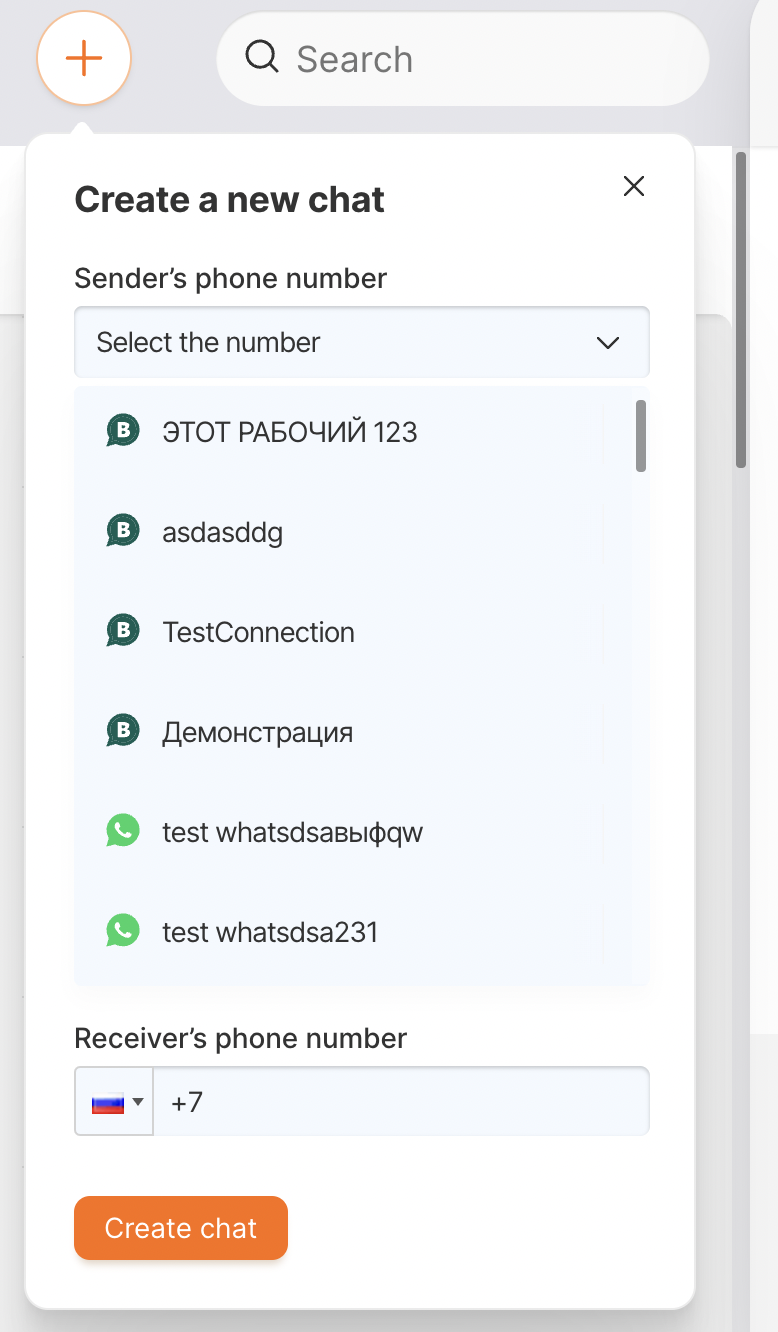
In the “Sender’s phone number” field, pick the number you want to write from. Available numbers are shown by the names you set in the “Connections” section. You can start a chat via WhatsApp Business API, WhatsApp, or Telegram.
Enter who to write to
In the “Receiver’s phone number” field, enter the client’s number.
Create the chat
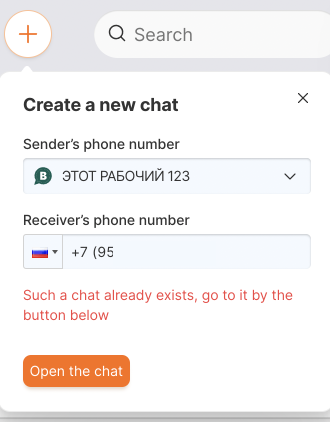
Click “Create chat” — a new chat opens and you can send a message right away.
Chat with a client from another number
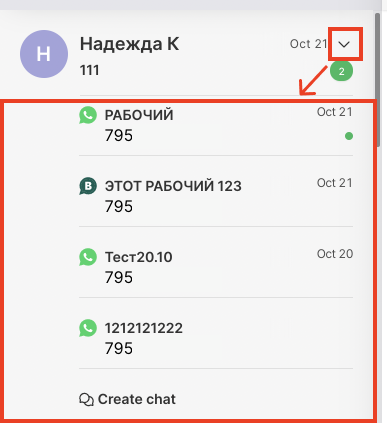
To write to an existing client from another connected number, click the arrow in the chat and select “Create chat” — a new chat is created via a different outgoing number.
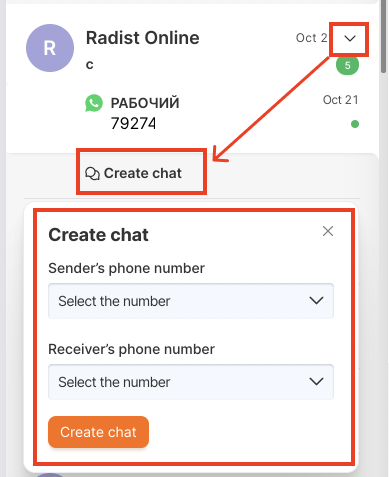
All chats with one client open as a list when you click the arrow. Each chat is labeled with the name of the outgoing number the conversation goes through.
Order of a contact’s chats
A contact’s chats are sorted automatically by two rules:
- Unanswered first. Chats with unanswered messages are always on top; answered ones are below.
- Within each group — by the time of the last message: the more recent the message, the higher the chat.
When you click a contact, the top chat from the list opens automatically — usually the most urgent, unanswered conversation.
Example: if a contact has conversations in WhatsApp, Telegram, and WABA, and the unanswered message is only in Telegram, the order will be: Telegram → WhatsApp → WABA.
If the number fails the check
Before a chat is created, RadistWeb checks the client’s number. If the check fails, an error appears in the create-chat window:
- Number not registered in WhatsApp — “the phone is not registered in WhatsApp”.
- Number not registered in Telegram — “a contact with this phone number/username was not found (the contact may have a hidden phone number)”.
- Could not verify the number — “unable to verify the phone number”.