Chat filtering
Filter chats in RadistWeb: narrow the list in the Chats section by connection and by unanswered messages, and learn how to apply and reset the filter.
In the Chats section you can filter the list by connection and by unanswered messages — to quickly find the conversations you need and never miss a client who is waiting for a reply.
How to open the filters
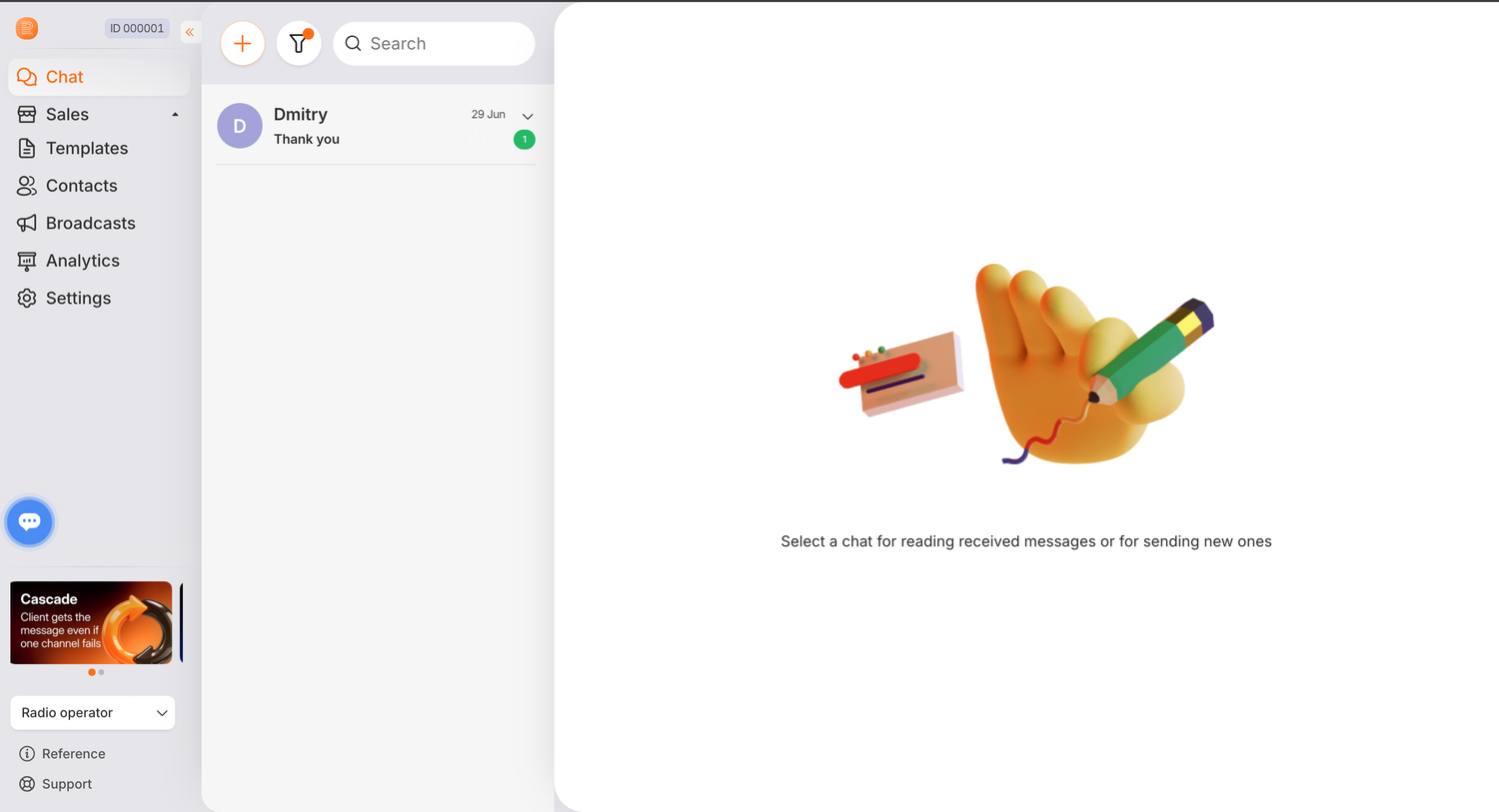
Next to the create-chat button, click the filter icon — a window with the filter settings opens:
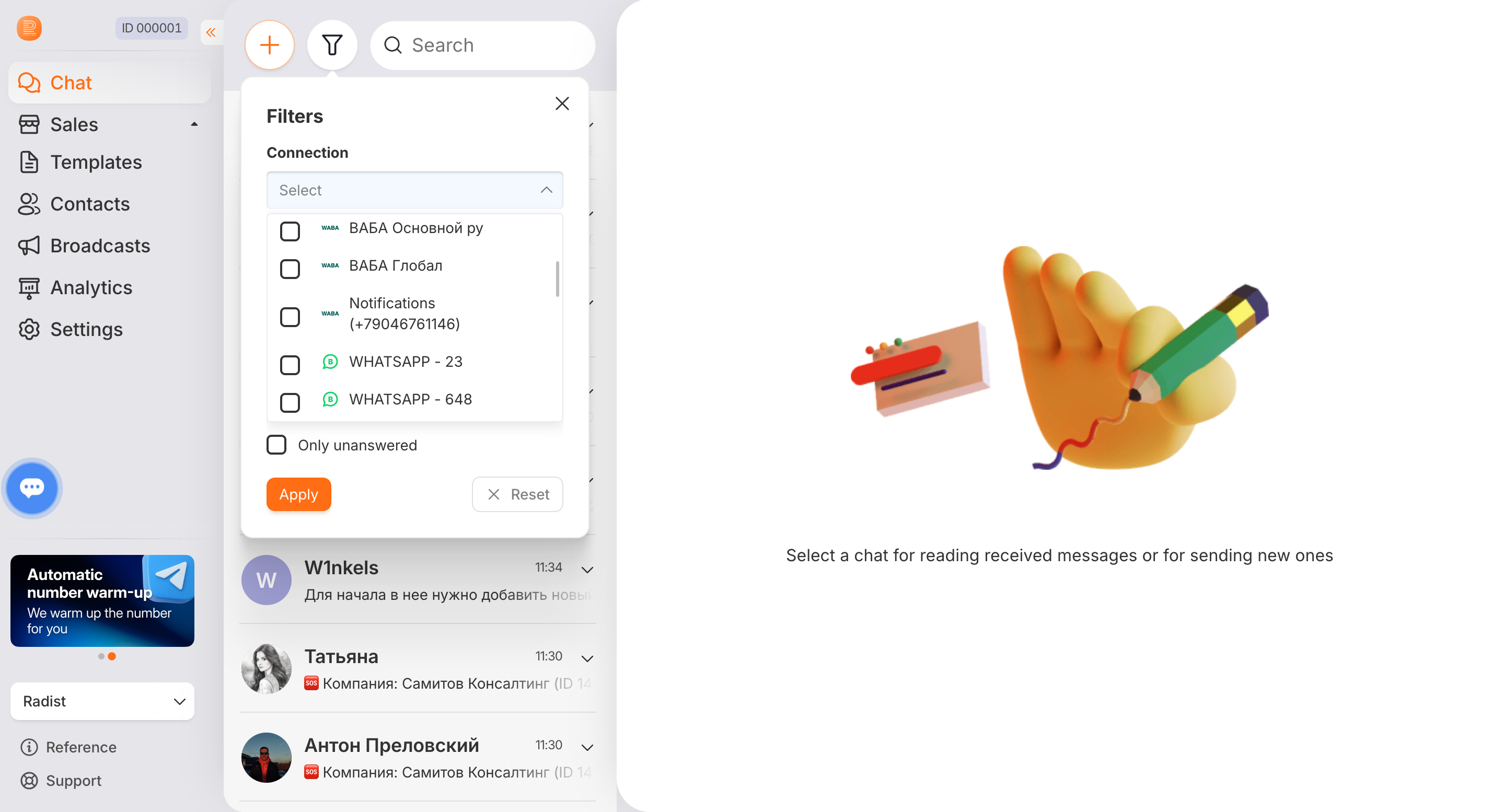
There are two filters, and you can use them separately or together.
Connections
Select one or several connections from the drop-down list. After you apply the filter, the list keeps only the contacts that have chats on the selected connections. Inside a contact, only the chats from the selected connections are shown as well.
In the drop-down list, connections are grouped by messenger (the same way as in the create-chat form): each messenger is a separate group that lists its connections. If you have several channels connected (Telegram, WhatsApp Business API, WhatsApp, etc.), this makes it easier to find the connection you need.
Only unanswered
Turn on the “Only unanswered” toggle — the list keeps only the contacts that have unanswered chats. Unanswered chats are chats with incoming messages from the client that you haven’t replied to yet (not to be confused with unread ones).
Apply and reset
- To apply the filter, click “Apply” — the settings take effect only with this button.
- The “Reset” button clears the filter instantly.
- The cross in the corner of the window only closes it and does not change the current filter.