Chats
Work with chats in RadistWeb: blacklist and unblock contacts, track unanswered messages, read message statuses, and send voice messages from one window.
The “Chats” section gathers all conversations from your connected messengers: here you reply to clients, send files and voice messages, track unanswered messages, and watch delivery statuses.
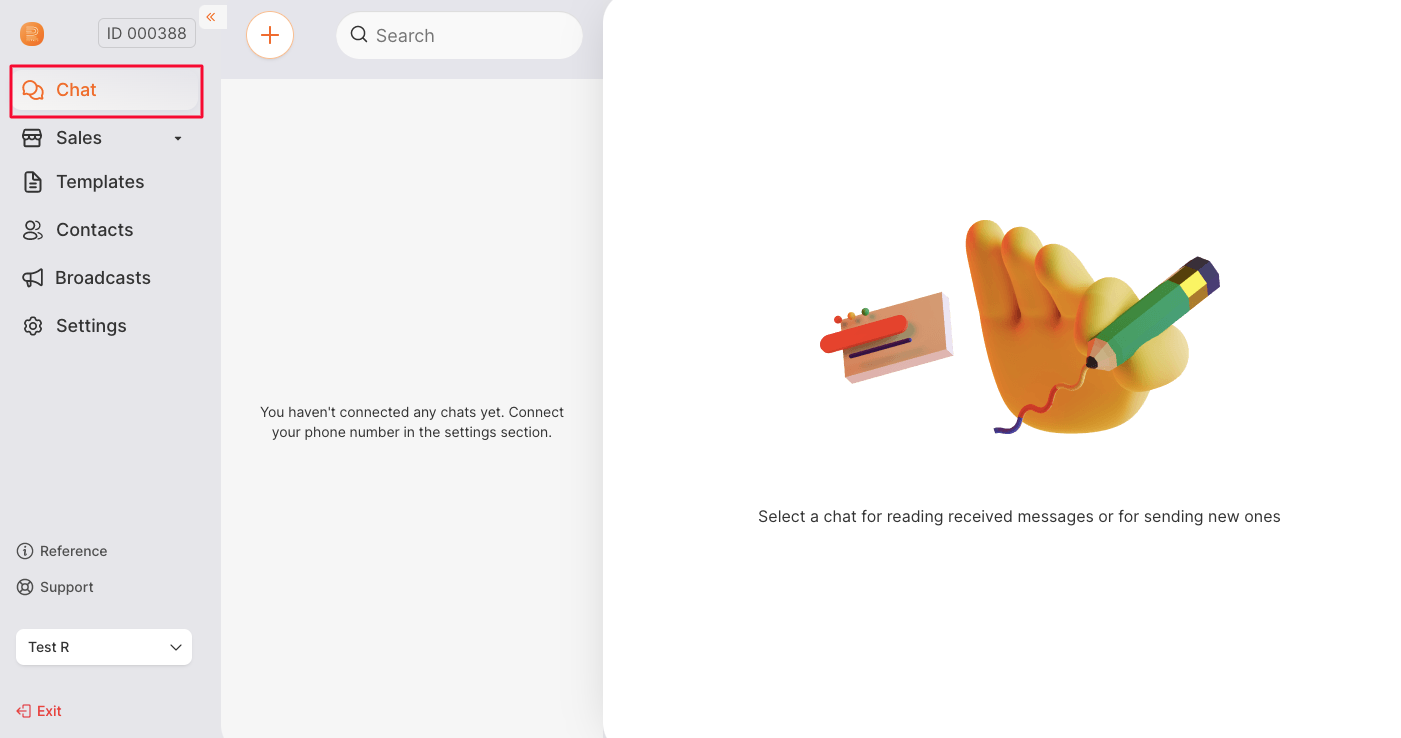
Create a chat
To write to a client you haven’t chatted with yet, create a new chat: pick the outgoing number and enter the client’s number.
Chat filtering
You can filter the chat list by connection, by unanswered messages and by contact tags — to quickly find the conversations you need and never miss a client waiting for a reply. The filter opens with the filter icon next to the create-chat button.
Counter of unanswered messages
Chats are arranged by the time of the last message: the chats with the most recent message appear at the top of the list.
Opposite a chat with unanswered messages (not to be confused with unread ones), a green counter lights up — it shows how many incoming messages came from the client.
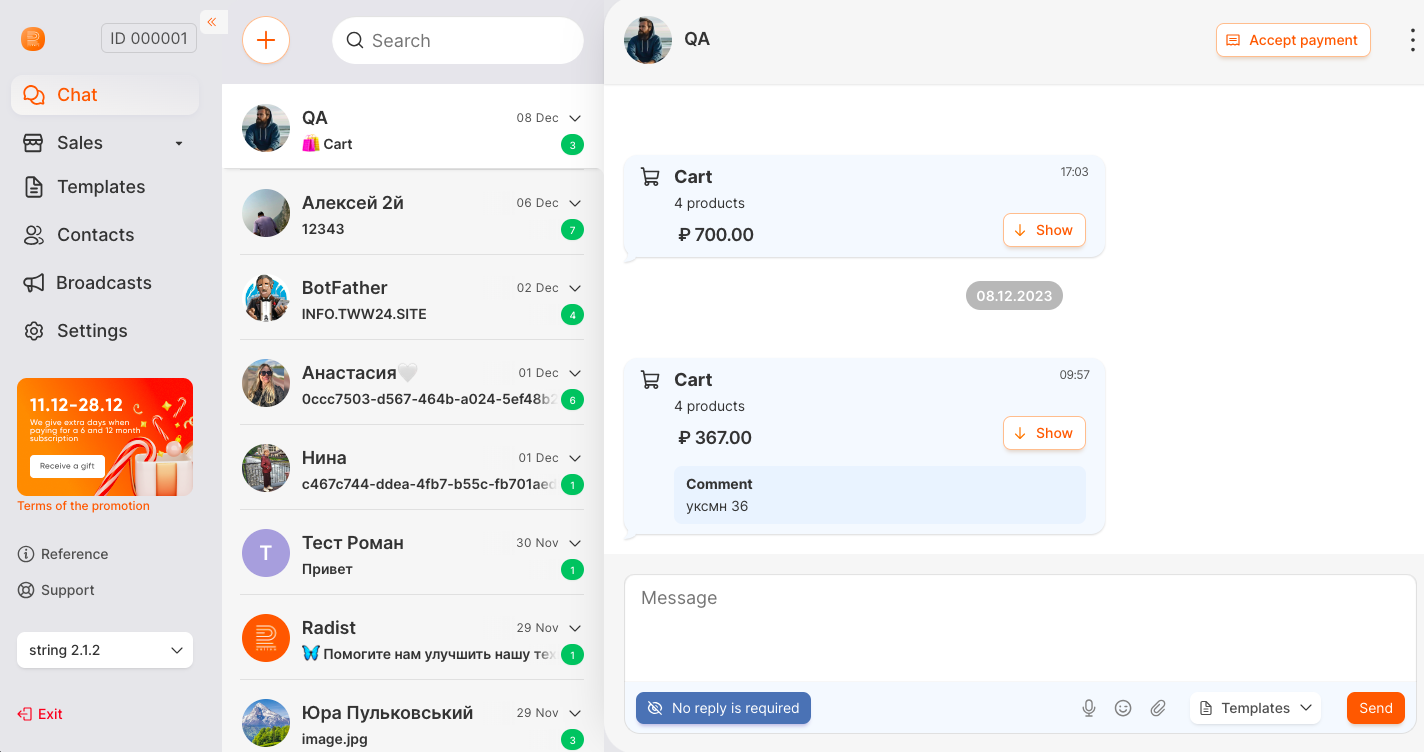
There are three ways to reset the counter:
- Send a reply to the client.
- Click the “No reply is required” button in the input field — it removes the “Unanswered chat” status from the chat.
- Enable read-status sync in the Kommo (amoCRM) integration settings (WhatsApp Business API, WhatsApp, Retie, Telegram). Then the unanswered counters in RadistWeb reset when messages are read in Kommo (amoCRM) or a conversation is closed.
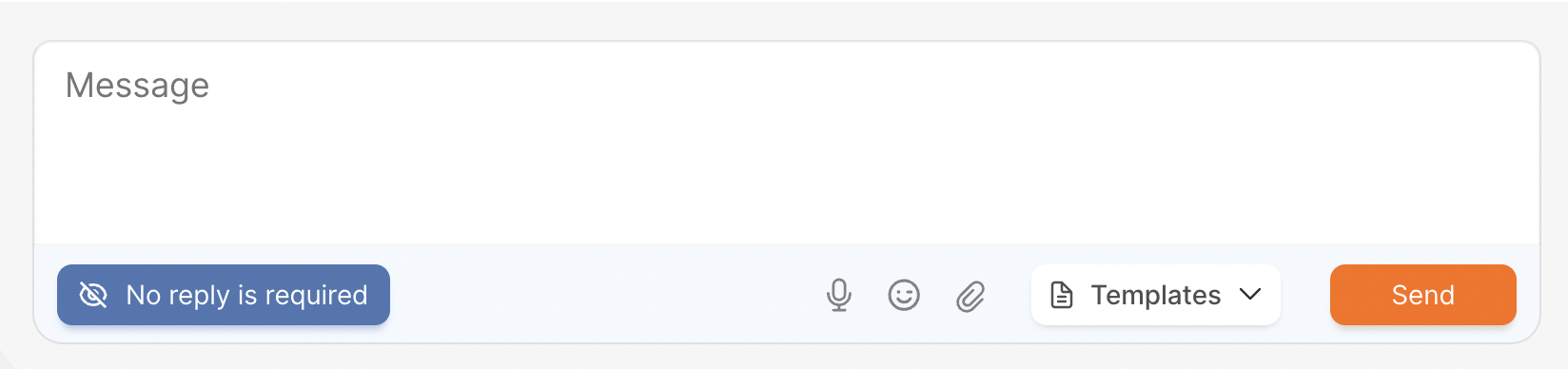
When the “No reply is required” button is active
The button works only when there is actually something to reset, so its appearance tells you right away whether any action is needed:
The chat has the “Unanswered chat” status — the button is active.
The chat has already been answered — the status is removed automatically, and the button turns grey and cannot be clicked. The same happens right after you click the button itself.
As soon as the client writes again, the “Unanswered chat” status reappears and the button becomes active once more. If the chat has no incoming messages at all — for example, you wrote first and the client has not replied yet — the button is inactive.
An inactive button looks the same as the other unavailable elements of the input field: the microphone and the paperclip. In the mobile version the button follows the same rules.
Message statuses
Outgoing messages have four statuses:
- Sent — one gray check mark.
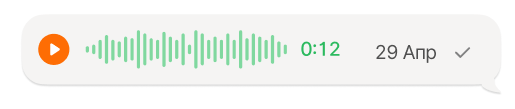
- Delivered — two gray check marks.
- Read — two green check marks.
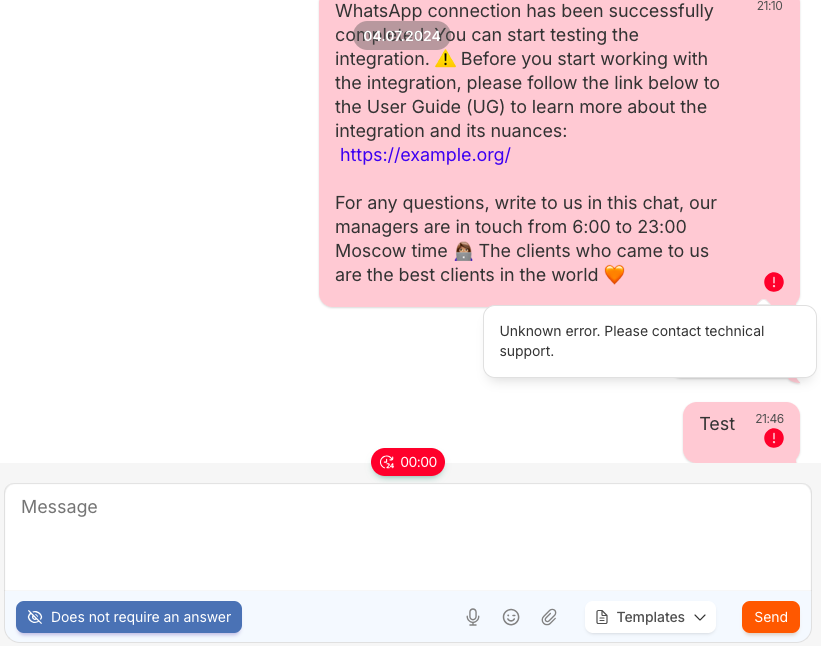
- Error — the message background turns red with an exclamation-mark icon. Hover over the icon to see the reason. Possible reasons are covered in the Errors in chats section.
If a message did not reach the client, it gets the “Error” status — such messages do not stay in the “Sent” status. You can see straight away that the message was not delivered and send it again.
Sometimes the messenger does not report what exactly went wrong. In that case hovering over the icon shows no explanation — only the error itself.
Statuses in Kommo
The statuses are also visible in the Kommo chat — even for messages that were sent outside of Kommo: from the RadistWeb personal cabinet or straight from the phone. The status is updated in real time: “Sent”, “Delivered”, “Error”. You no longer have to switch to the personal cabinet or to the messenger app to make sure the message has been delivered.
It works for all the channels where the messenger returns delivery and read statuses.
Replies to messages (reply)
If a conversation covers several topics at once, a reply can be linked to a specific message — just like in the messenger itself. Both you and the client can reply this way.
How to reply to a specific message
Hover over the message you need
Three dots appear next to the message — click them and choose “Reply”.
Check the quote above the input field
The selected message appears above the input field: an arrow icon with the blue “Reply” label, and the text of the quoted message underneath. The background of the quote block differs from the input field, so you can see at once that the message will go out as a reply to a specific line rather than as a regular message. Changed your mind? Click the cross on the right and the quote is detached.
Write your reply and send it
The client receives the message as a reply to the selected one — the link between the messages is kept both in the messenger and in the RadistWeb chat.
You can reply to any message: an incoming one from the client or your own outgoing one, and to text, files, images and voice messages alike.
In the mobile version of the “Chats” section, reply works the same way.
When the client replies to a message
When a client replies to a specific message using the “Reply” feature in a messenger, RadistWeb shows a preview of the quoted message above that reply — so you can see right away what the client replied to, without scrolling through the history.
- The quoted text in the preview is trimmed to 30 characters with an ellipsis “…”.
- Clicking the preview scrolls the chat to the original message in the conversation history and highlights it.
- If the client replied to a media file, the preview shows the file name or the attachment type (the 30-character trimming works the same way).
- The feature works in the “Chats” section of RadistWeb, in the Radist.Online chat window inside amoCRM and Bitrix24, and in the mobile version.
- Channels that support reply: Telegram, Telegram Bot, WhatsApp Business, WhatsApp Business API.
- If the quoted message is not in the RadistWeb chat history (for example, it was sent before the messenger was connected), the preview will not appear — there is nothing to link to.
- In group chats, reply works the same way as in one-to-one conversations.
- A reply to a specific part of a message is shown as a reply to the whole message.
Message draft
A message you have typed but not sent is saved as a draft: you can switch to another browser tab or move between the desktop and mobile versions and back — the text stays in the input field, so there is no need to type it again.
Drafts are kept both in the “Chats” section of RadistWeb and in the Radist.Online chat window inside amoCRM and Bitrix24.
Quick access to templates with “/”
To send a ready-made reply you do not have to open the “Templates” button and look for the one you need in the general list. Type "/" as the first character in the message field, and the list of available templates opens right above the input field.
Everything you type after “/” filters the list as you type. For example, “/hello” leaves only the greeting templates — pick the one you need and it is inserted into the input field as usual.
Good to know:
- If you type just “/” with no text, all templates available for this chat are shown — “My templates”, “Interactive messages” and WABA templates. Which templates are available in a particular chat depends on the channel, as before.
- If what you typed after “/” is not found in any template, the list is empty. Delete the text and try again.
- Closed the list without choosing a template? The “/” and the text you typed stay in the input field — you can delete them or write a regular message instead.
- A “/” that is not the first character — for example, after a space, or inside a link, a date or a fraction — is an ordinary character and does not open the list.
- Quick access also works in the mobile version of the account.
Sending files
You can attach files to a message in three ways:
- through the attachment button (paperclip) in the input field;
- by dragging a file anywhere into the chat (drag-and-drop);
- by pasting from the clipboard with Ctrl+V (for example, after copying the file in the file explorer).
Attached files are shown above the input field. For each file you see a preview (a downscaled image for pictures, a still frame for videos, a format icon for everything else), the file name, the upload status (for example, “Upload error”) and a cross to remove it. The chat history stays visible: the attachment area takes up no more than half the height of the window, and if there are many files, a scrollbar appears inside it.
If there was already text in the input field, it stays in place — add a caption if needed and click “Send”.
When you drag a file, you can drop it anywhere in the chat: the window dims and the hint “Drop the file to attach it” appears.
File limits and statuses
- Up to 10 files per message. If you try to attach an 11th file, the notification “Too many files in the message” appears, and the extra files are not attached.
- Up to 100 MB per file. If a file is larger, it shows the status “File too large”, it is not sent, and the other files in the batch are sent as usual.
- An unsupported format or a folder does not block the other files. Such a file shows the status “Unsupported format” (a folder shows “You can’t attach a folder — files only”), it is not sent, and the supported files are sent as usual.
- Attaching files, including drag-and-drop and Ctrl+V paste, also works in the Radist.Online chat window in Kommo (amoCRM) and Bitrix24.
- File attachment is also available in the mobile version of RadistWeb.
Voice messages
Voice message recording starts when you click the microphone icon in the chat window:
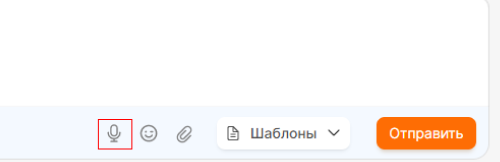
Click the “cross” to cancel the recording, or the “check mark” to send it.


Group chats
RadistWeb supports group chats in WhatsApp and Telegram — group messages arrive right in your personal account. The feature is off by default and is enabled in the “Connections” section.
Sending a contact
In RadistWeb you can send a client a contact — then, in the WhatsApp app, they get a button to save that contact to their phone.
Prepare the contact file
Generate or export a contact from your phone book in vCard format (a file with the .vcf extension). You can generate the file, for example, on vcardmaker.com.
The fields are: first name, middle (not used in some countries), last name, phone, and organization.
Send the file to the chat
Send the .vcf file to a RadistWeb chat from a WhatsApp number. The recipient sees a contact they can save to their phone.
Products in WhatsApp Business API
After you set up products and catalogs in WABA, they arrive in your RadistWeb personal account.
The blacklist
A chat can be blocked — added to the connection’s blacklist. This is available for chats of these connections:
- WhatsApp Business
- WhatsApp Business API
- Telegram Personal
- Telegram Bot (except group chats)
To block a chat, click the “Block” button:
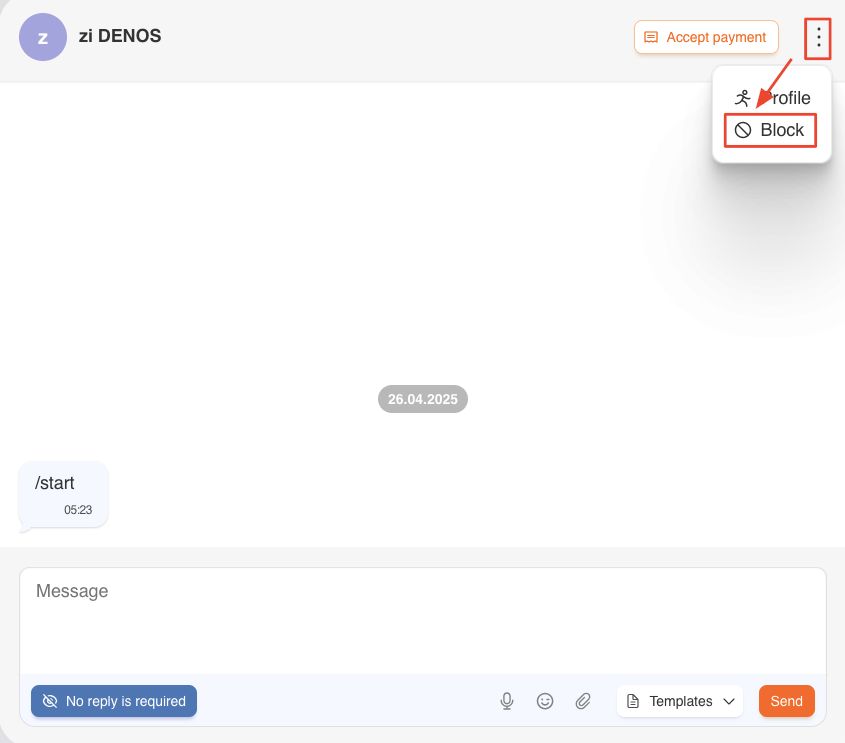
❗️ The action is available on all tariffs except “Initial” — including free connections that have no tariff at all (Telegram Bot, MAX Bot).
❗️ The “Block” button is available only to employees with the “Chats — Add to blacklist” permission.
After you click “Block”, the action window closes and a confirmation window appears:
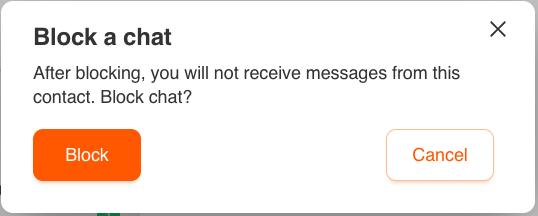
Click “Block” — the chat is added to the blacklist and a success message appears:

To close the window without blocking, click “Cancel” or the cross.
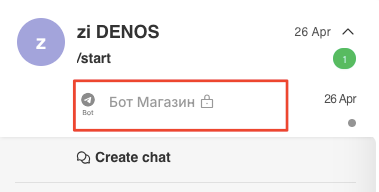
Blocked chats are shown in the list in a lighter color and with a lock icon:
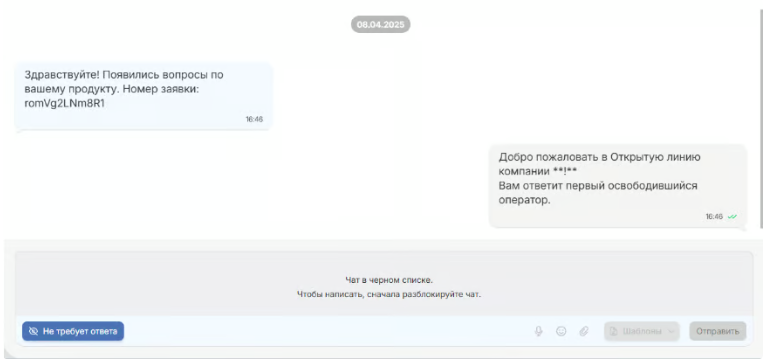
In a blocked chat the input field is unavailable, and the template and send buttons are inactive:
How to unblock a chat
To unblock a chat, click the “Unblock” button — it’s shown instead of “Block” in already blocked chats:
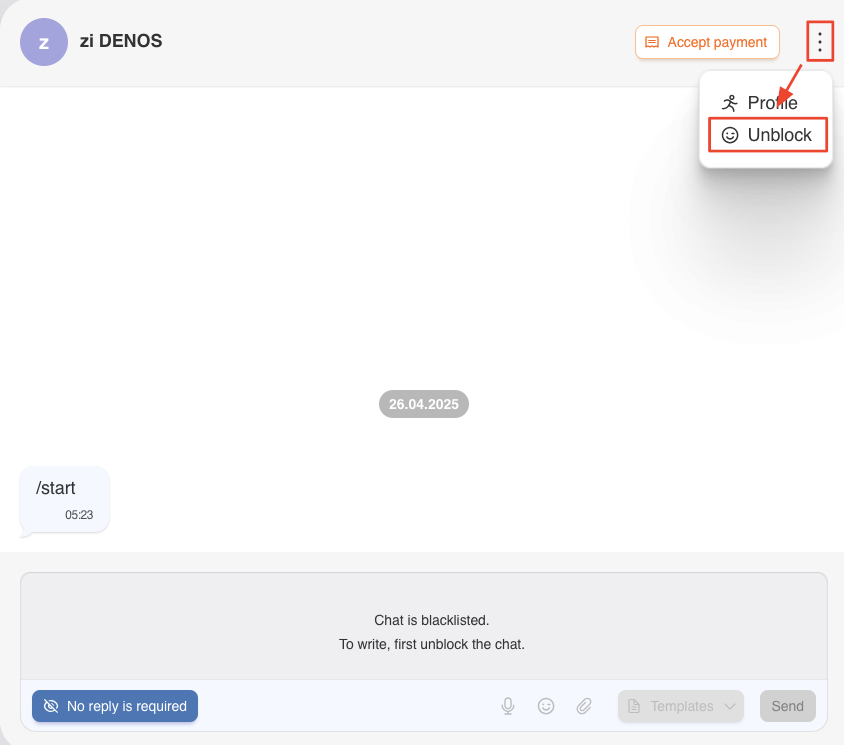
After you click “Unblock”, the window closes, the chat is removed from the blacklist, a message appears, and the action status automatically switches back to “Block”.
The blacklist on the “Initial” tariff
The blacklist is part of the Standard tariff. On the Initial tariff it does not work, and the chats behave like ordinary ones:
- chats are not marked as blocked, the input field is active — you can write to the client;
- messages from the contacts on the list arrive as usual: filtering is off, so neither incoming nor outgoing messages are blocked;
- in the connection card the “Blacklist” panel is shown as unavailable on this tariff.

This applies to the connections that have an Initial tariff — WhatsApp Business and Telegram Personal. WhatsApp Business API has no Initial tariff, and Telegram Bot is connected for free.
Errors in chats
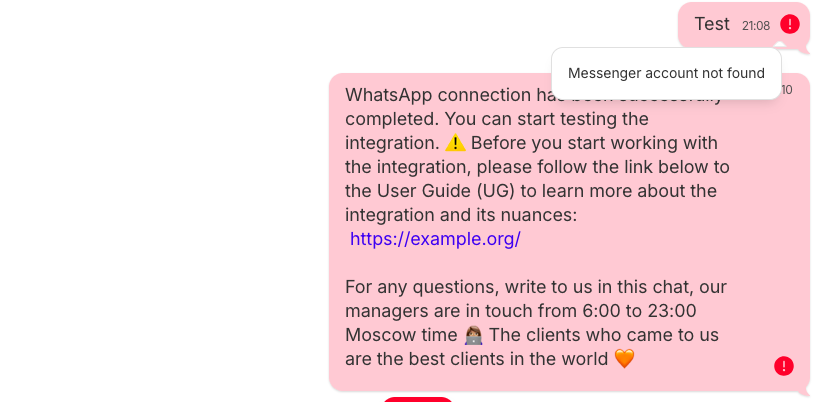
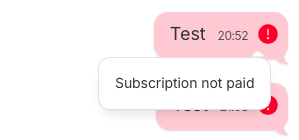
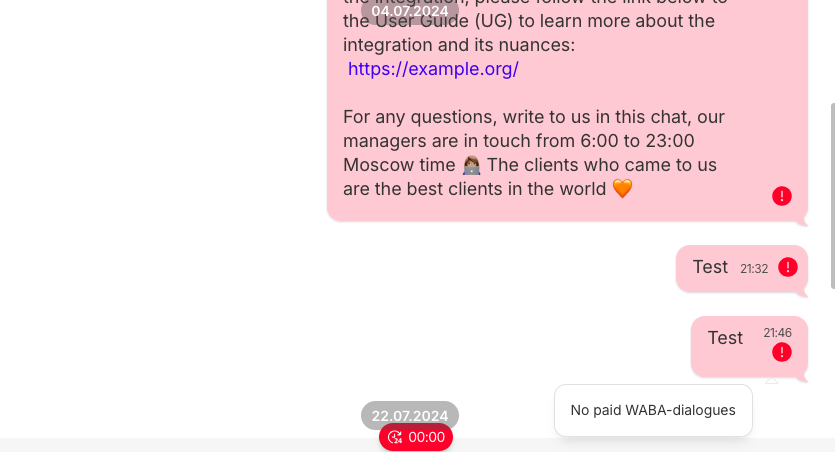
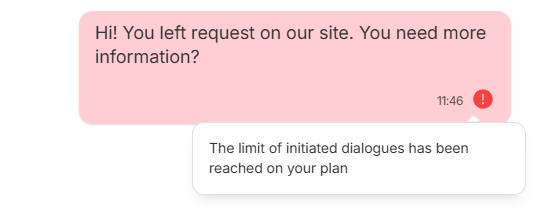
If a message can’t be sent, its background turns red with an exclamation-mark icon. Hover over the icon to see the reason. Possible reasons:
- The messenger account was not found — there is no messenger account on the contact’s phone number.
- Subscription not paid — go to the “Subscriptions” section to check your paid subscriptions.
- No paid WABA dialogues — the WhatsApp Business API connection has no paid templates, so a conversation can’t be started. See the “Subscriptions” section.
- The outgoing conversation limit on the tariff has been reached — you need to upgrade your tariff.
- Unknown error. Contact technical support — for all other cases, reach out to our technical support.
What’s next
* Facebook is owned by Meta, which is recognized as an extremist organization; its activities are banned in the territory of the Russian Federation.