Navigating your account
Navigating the RadistWeb account: how the side menu works, how sections expand, what the collapsed menu does and how to reach support right from your account.
Everything RadistWeb has is gathered in the side menu: chats, sales, templates, contacts, broadcasts and settings. Here is how it works, so you don’t have to look for the right page by guessing.
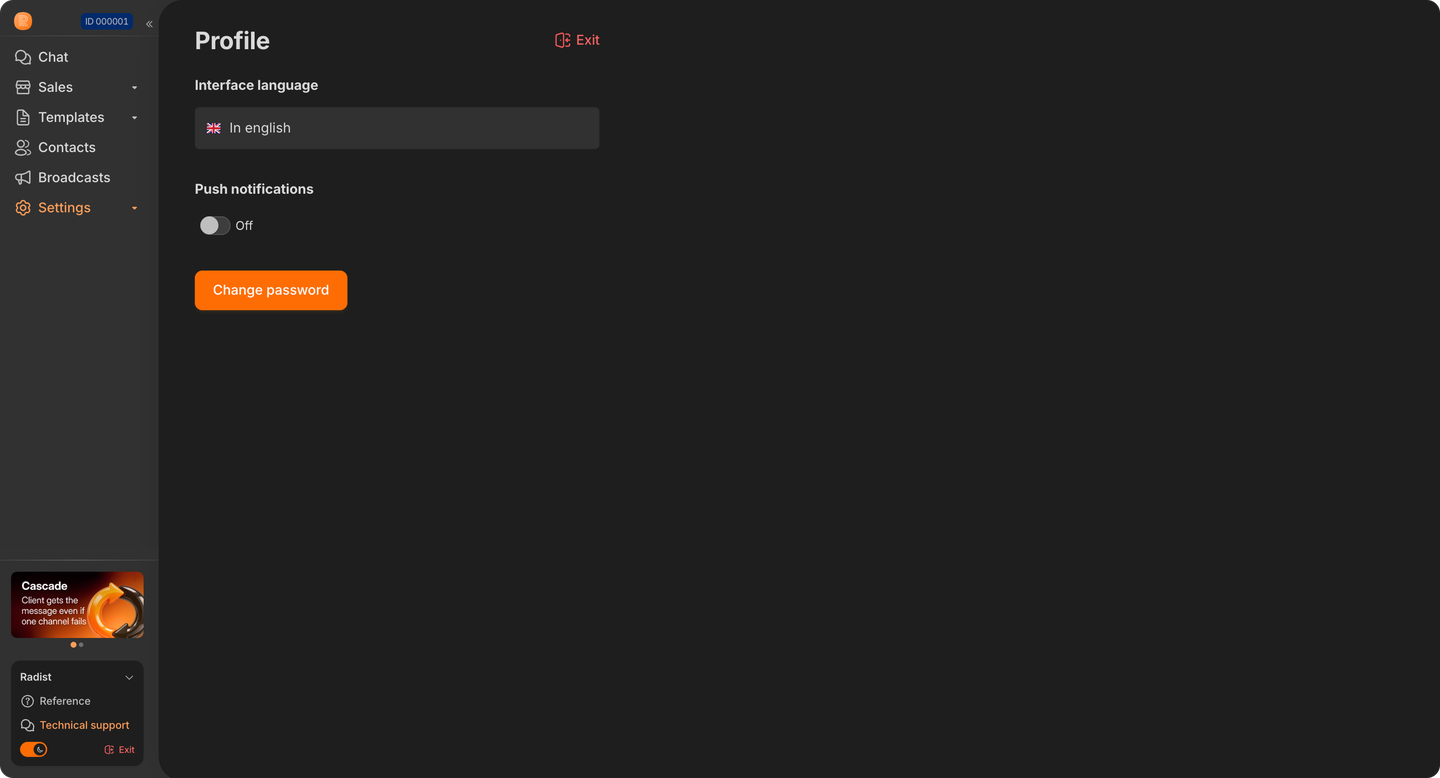
Account ID
At the very top of the menu, next to the logo, there is a plate with the account ID — for example, “ID 000001”. This is the number of your company in RadistWeb: you are asked for it whenever you contact support.
Click the plate and the number is copied to the clipboard. Only the number itself is copied — without the word “ID” and without extra spaces — so you can paste it straight into your message. A confirmation that the number has been copied appears next to it for a second.
Sections and subsections
Some sections have subsections — those are “Sales”, “Templates” and “Settings”. Click such a section and the list of its subsections opens right below it, with an indent.

- The arrow next to the name shows the state: the section is expanded or collapsed.
- The active subsection is highlighted — you can see where you are.
- Only one section is expanded at a time. Open a second one and the first collapses, so the menu never turns into a long list you have to scroll.
The collapsed menu
The menu can be collapsed down to icons — that leaves more room for the page. When it is collapsed, the icon of the parent section is highlighted, so it is clear which branch you are in. Hover over it and a pop-up list of subsections appears, showing which one is open right now.
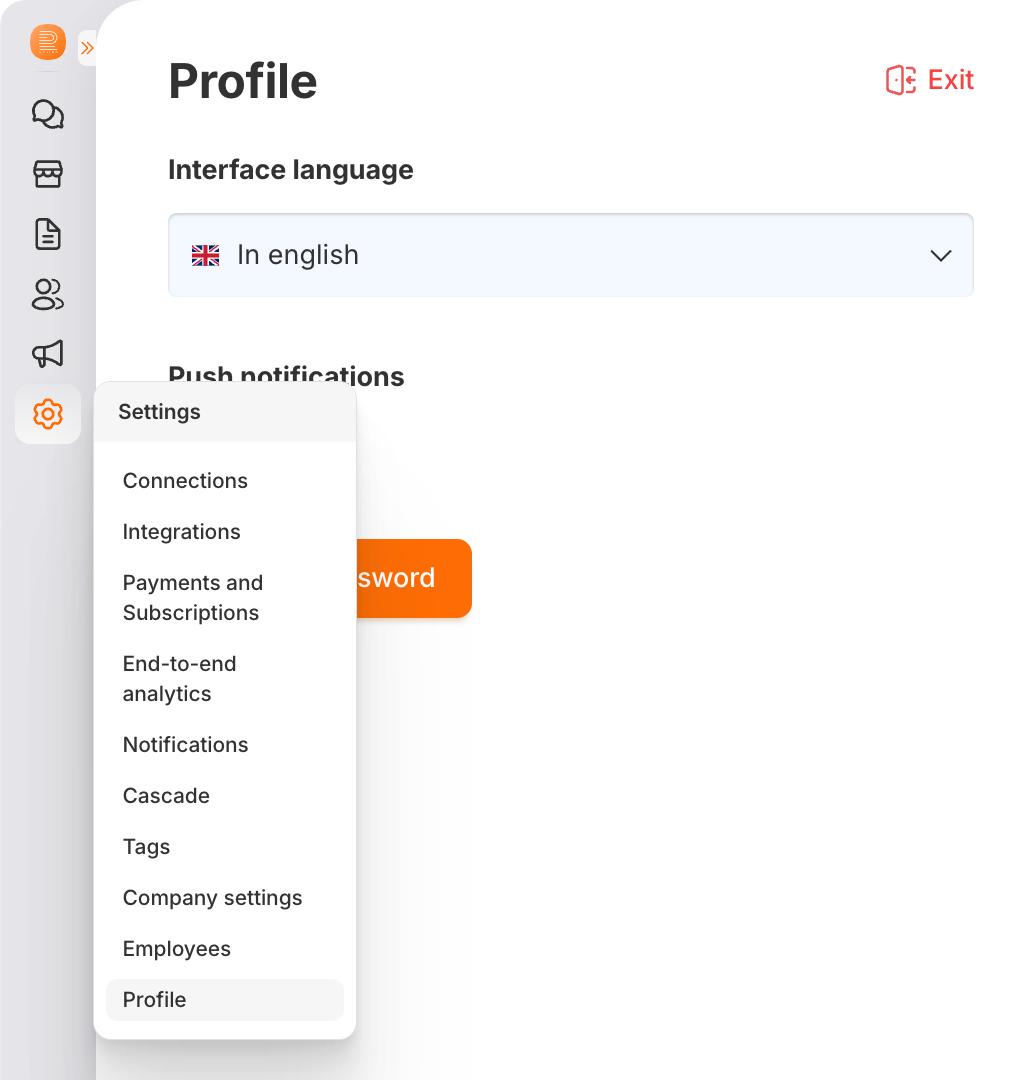
The account remembers how you left the menu. The “collapsed / expanded” state is saved in the browser — reloading the page does not reset it.
If you open a subsection by a direct link, the parent section expands on its own in the expanded menu.
The mobile version
On a phone a section with subsections works as a move to a second screen: you tap the section — the list of its subsections opens, together with a “Back” button.

📌 You can also put the account on your phone’s home screen and open it like an app — RadistWeb on your phone.
What sits at the bottom of the menu
Below the list of sections sits everything else: switching between companies, “Reference”, “Technical support”, the theme switch and the way out of your account.
Switching between companies
Click the company name — the list of your companies opens, together with the “Add company” button.
📌 How to work with several companies — see Staff.
Reference
Two items: “Knowledge base” — this very base of instructions, and “Familiarization with the main sections” — a short tour of the account.

Technical support
The orange “Technical support” button is how you reach us. Clicking it opens our support page with every way to contact us: write to us in the messenger you prefer or give us a call. This way the conversation stays with you, and we can get back to your question if we need to clarify something.
The theme
At the very bottom of the menu there is a theme switch. Click it and the account changes its look right away: the moon icon means the dark theme is on, the sun icon means the light one. By default the account opens in the light theme.
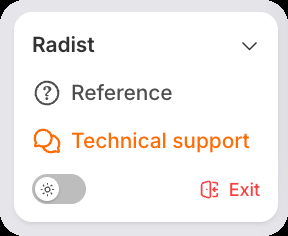
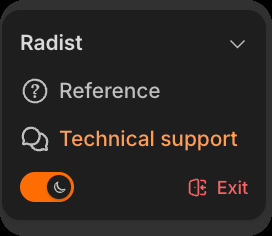
The theme you pick is remembered by the browser: next time the account opens in the same theme, no need to switch it again. The setting lives in the browser and not in your account — open RadistWeb from another device or another browser and it will be light there again.

Every section of the account is adapted to the dark theme, on the phone as well. On a phone the switch sits at the top of the menu, under the company name: RadistWeb on your phone.
Logging out
The “Exit” button sits next to the theme switch, at the very bottom of the menu. To keep you from leaving the account by accident, the click has to be confirmed a second time.
📌 The same button is in the Profile section — in the “Account management” block.